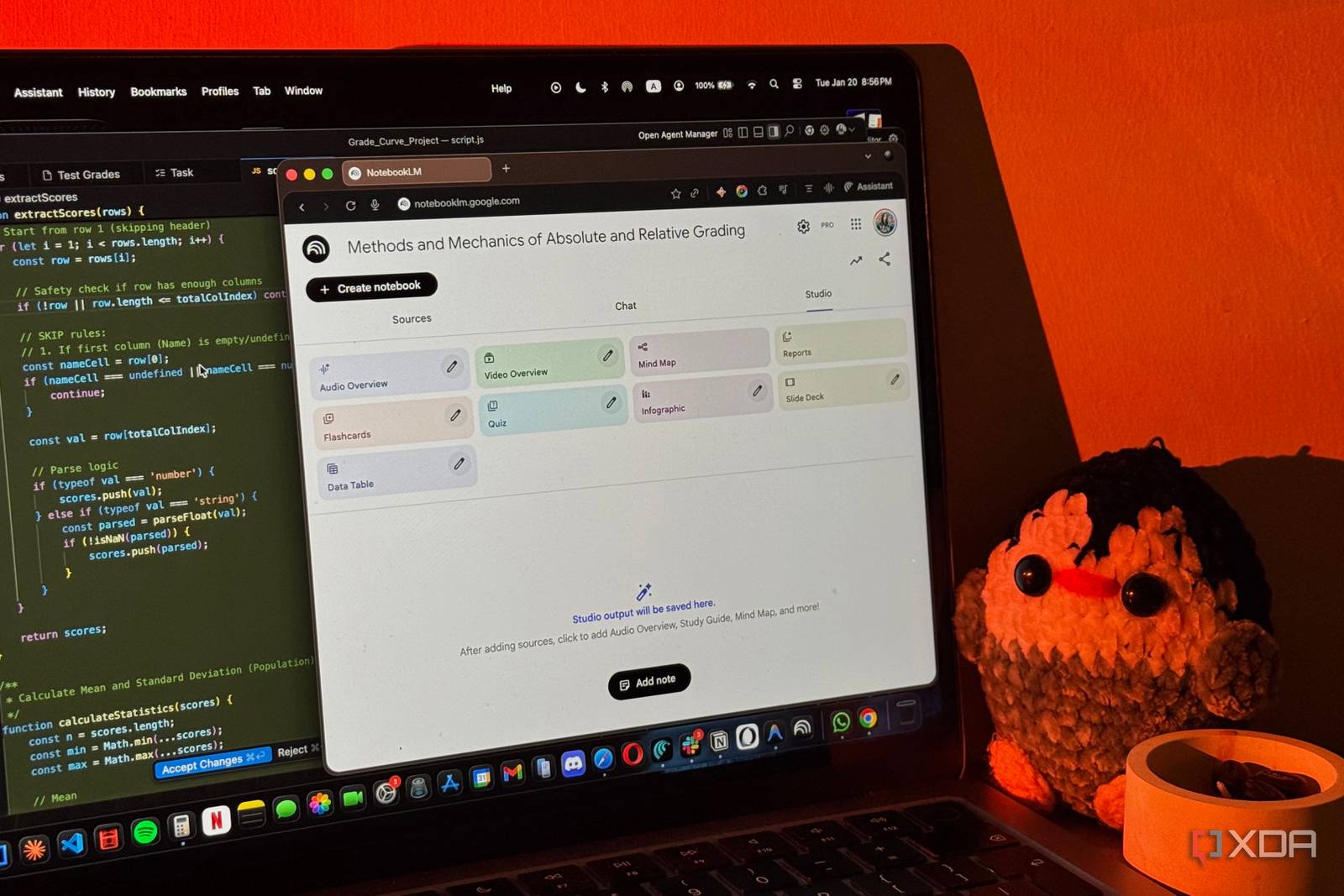
I spend an unhealthy amount of time defending Google’s ecosystem utility to individuals, even when the company seems determined to lock down previously open platforms and abandon perfectly functional software at will. However, I’ll give credit where it’s due, and Google AI tools like Gemini and NotebookLM justify the immense hype surrounding them. Instead of treating a random conspiracy theorist from 2012 as gospel, NotebookLM sticks to the sources you’ve fed it, making it powerful and well-controlled for targeted research and understanding complex subjects from sources you trust.
Its Studio panel is also immensely useful and popular, home to Audio Overviews and, more recently, Cinematic Video Overviews. I use these tools heavily to visualize complex concepts, and I’ve found that the default output is rarely worth the wait. Free-tier accounts don’t even have this feature, which was released in March. Only Ultra subscribers can generate 20 such videos per day, while other subscribers are capped at two. To get anything of value from cinematic videos, I’ve pushed my limits over the past few weeks to figure out how you can maximize those two daily runs to get share-worthy visual assets every time.
The prompt box is not optional
You need more than just the compute and a prayer
The biggest fallacy in NotebookLM’s Cinematic Video Overview generation window is treating the customization prompt as an optional add-on. AI cannot understand information in the conventional human sense, and hence cannot decide what to emphasize, how to lay that emphasis, or pick an art style that best suits the concepts. I recently assembled a notebook on tuning fountain pen nibs, using technical documents detailing methods and pressure settings for aligning nibs, adjusting ink flow rate, and adapting pens to the flow characteristics of various inks. An Audio Overview simply won’t do justice to such subjects that need visual demonstration.
I started by naively hitting the Generate button on a Cinematic Video Overview, and found the AI strips away all the detail, leaving me with what I can only call a fusion of Slide Decks and Audio Overviews, at best. In the next run, I explicitly stated the mood, demanding high-contrast chiaroscuro lighting to highlight the brass nibs’ metallic sheen against a dark, brutalist industrial background. I added camera movement using precise terminology to control the narrative flow. My prompt mandated a “slow push-in” for emphasis and a “wide shot” showing the disassembled pen parts resting on a custom leather journal cover to provide broader context. I also requested a fast pan to aid visual connection between related subject elements.
Establishing strict production rules, as though writing a YouTube script, also helps maintain viewer engagement. With one well-placed instruction, you can command the AI to use the three-second rule so the visuals shift regularly and the video doesn’t feel boring. It also helps to explicitly mandate that information be visualized rather than narrated or presented as plain text in the video. It takes time to do this the first time around, but it is easy to dictate and template for repeated use. I tend to reel off camera angles, lighting requirements, and pacing rules addressed to an imaginary filmmaker’s camera crew, and the results improve substantially.
Audit the first take, and salvage the second one
Learn as you go
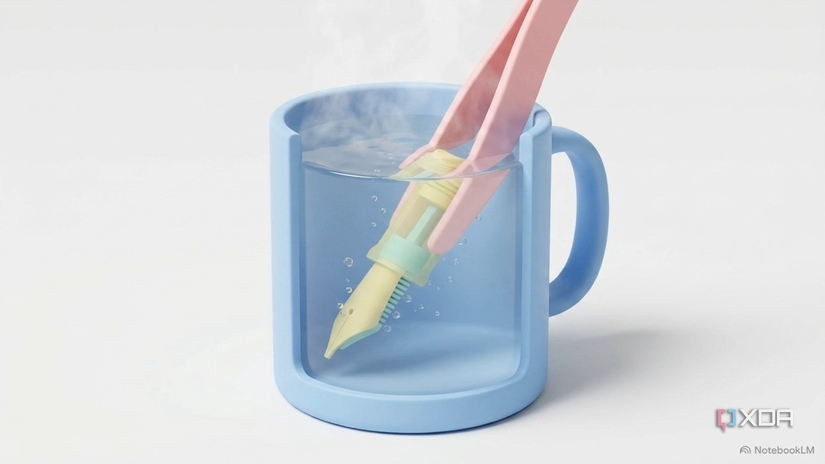
A screengrab from a Cinematic Video Overview without a customization prompt
No matter how perfectly you engineer your initial prompt, the first video generation of the day typically requires course correction. I’d suggest waiting for the first one to finish generating before you start work on the second. Even with customization instructions on a template, the first run is typically like running diagnostics on a patient, because every case and every notebook is different.
In the first run, with basic customization you’d expect from a beginner or novice user, I found audio doing all the heavy lifting, discussing the finer points that should have been visual. Reviewing that output before quickly generating the second Cinematic Video Overview for the day — whether in the same notebook or another — helps identify exactly where the AI’s interpretation went off track, so the follow-up run can correct course with a sharper, more targeted prompt.