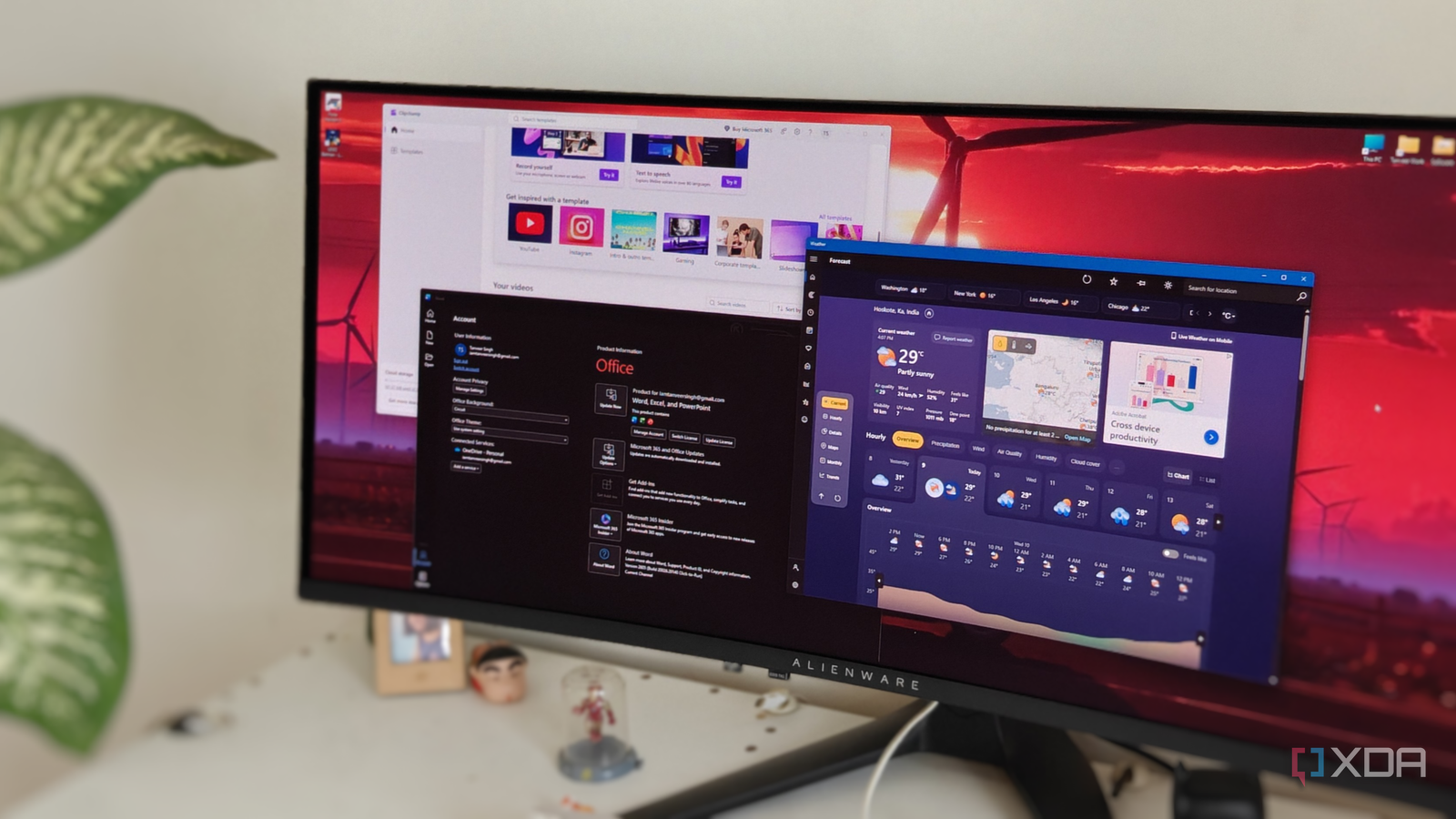
When users get a new Windows PC or do a clean install, the first thing they do is install apps and other software — namely, productivity apps. However, they typically overlook the fact that Windows has productivity software built into the OS that does a pretty good job of managing workflows.
That isn’t to say everything in the OS is good or helpful. For instance, Copilot and the apps Microsoft has allowed it to creep into is one so-called productivity tool worth disabling virtually everywhere. Still, instead of installing third-party apps — whether commercial or open-source — it’s worth using some of the better built-in options to improve productivity.
Try the Snipping Tool
Snagit is not needed
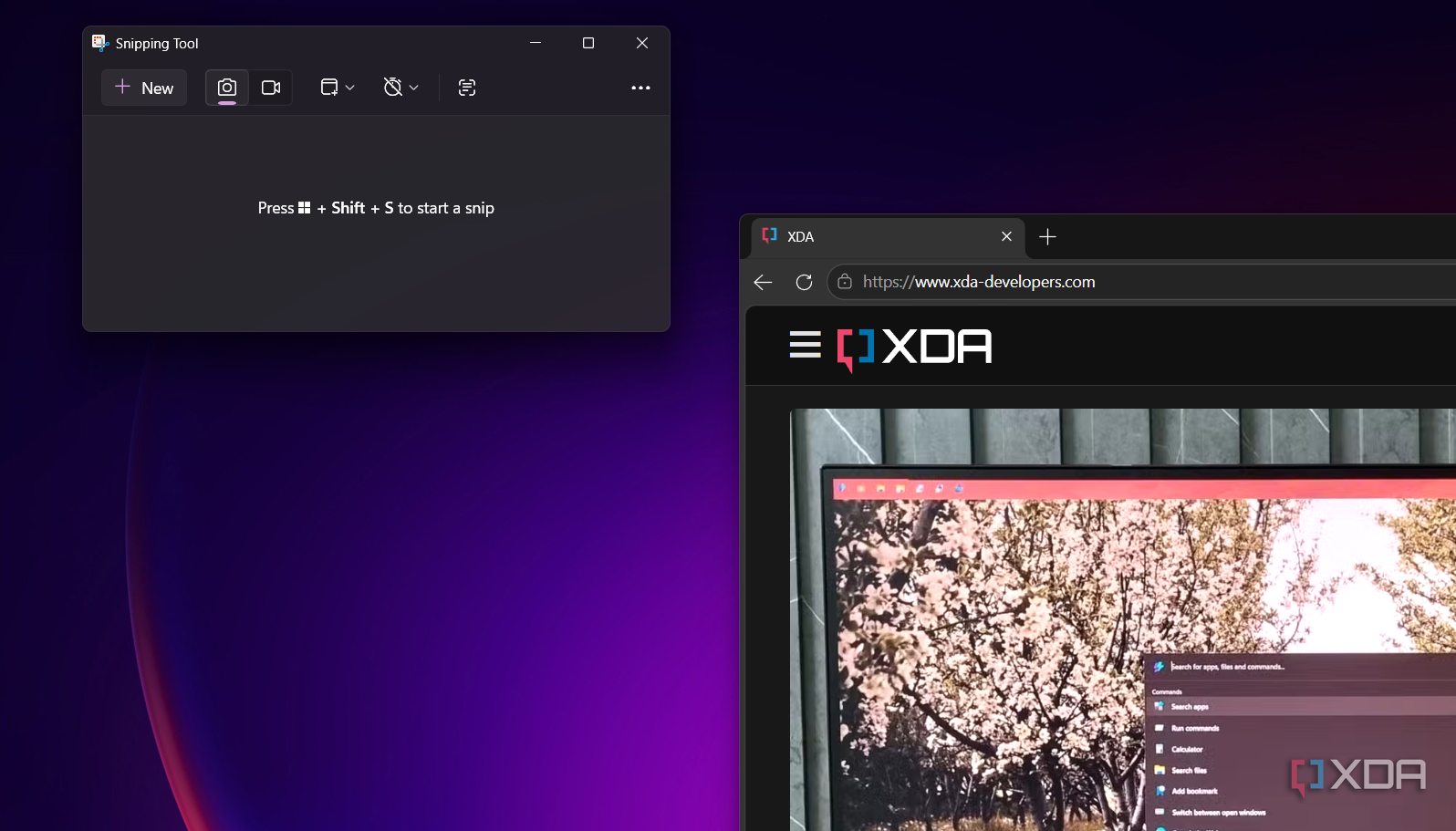
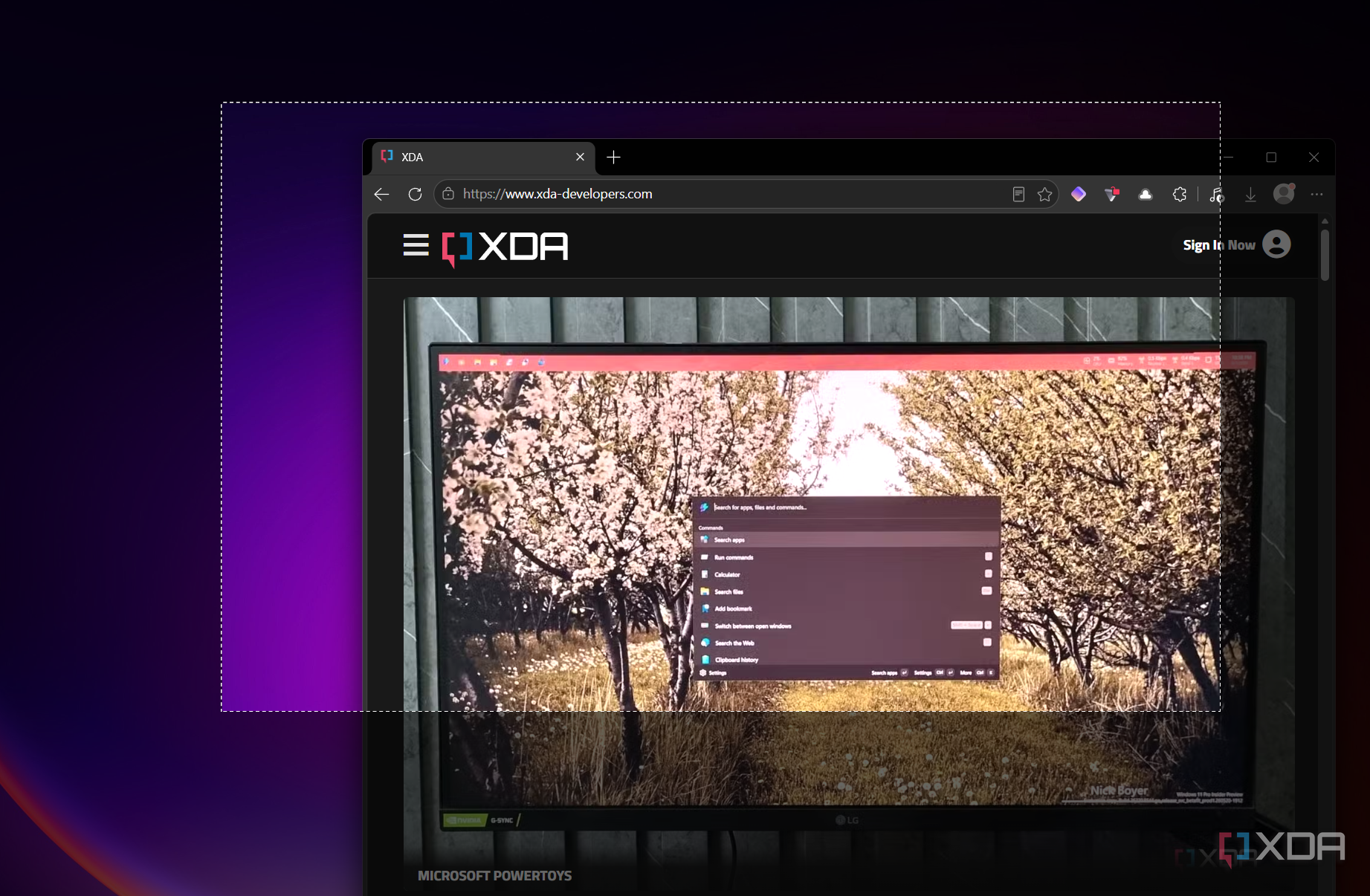
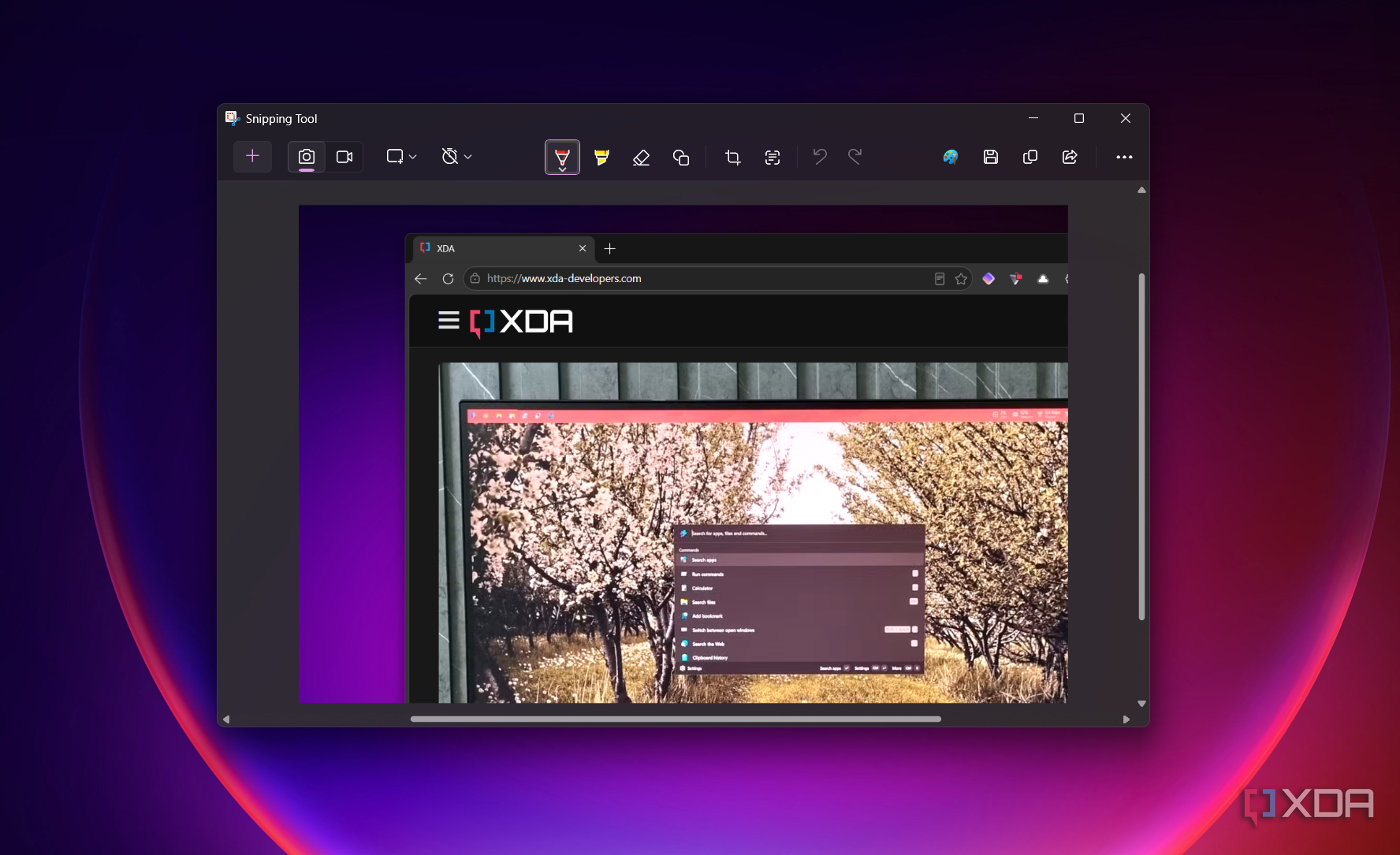
One of the core tasks in many workflows is taking screenshots on Windows. Tools like Snagit or free alternatives like Greenshot are popular choices, but there’s no need to install extra software if it isn’t necessary. The built-in Snipping Tool works surprisingly well — and you don’t even need to launch it first. Press Win + Shift + S to take a shot immediately.
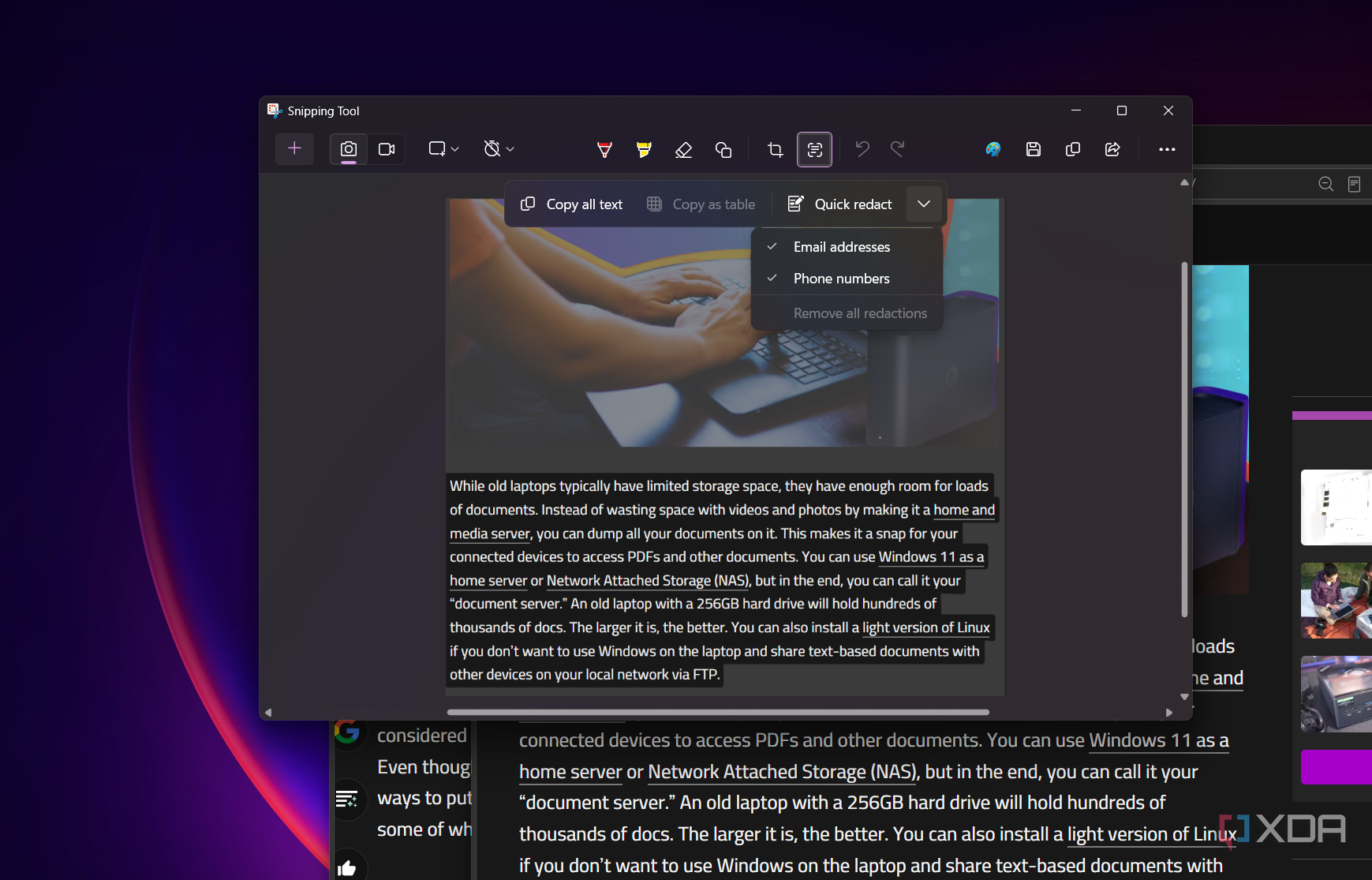
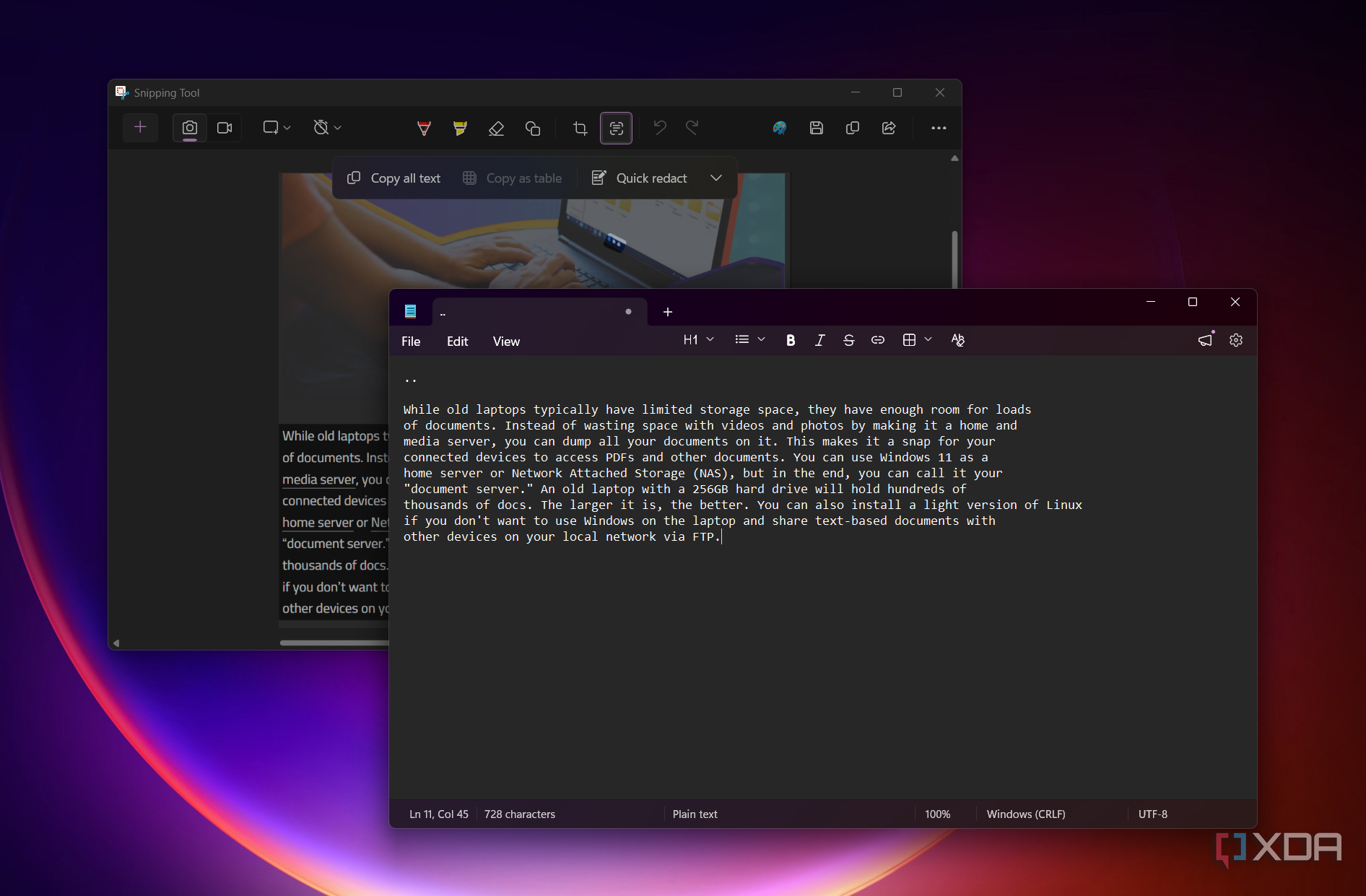
Once the screenshot has been taken, you can mark it up if needed, share it, or drop it directly into an email and send it off. Additional options include delayed shots, capturing entire windows or specific regions, enabling quick markup, and sharing directly by default. A standout feature is OCR, which lets you take a screenshot of text, extract it, and paste it into an editable document. It doesn’t have every editing feature a dedicated tool might offer, but for what it includes, it does the job well.
Outlook Mail and Calendar
To stay on task
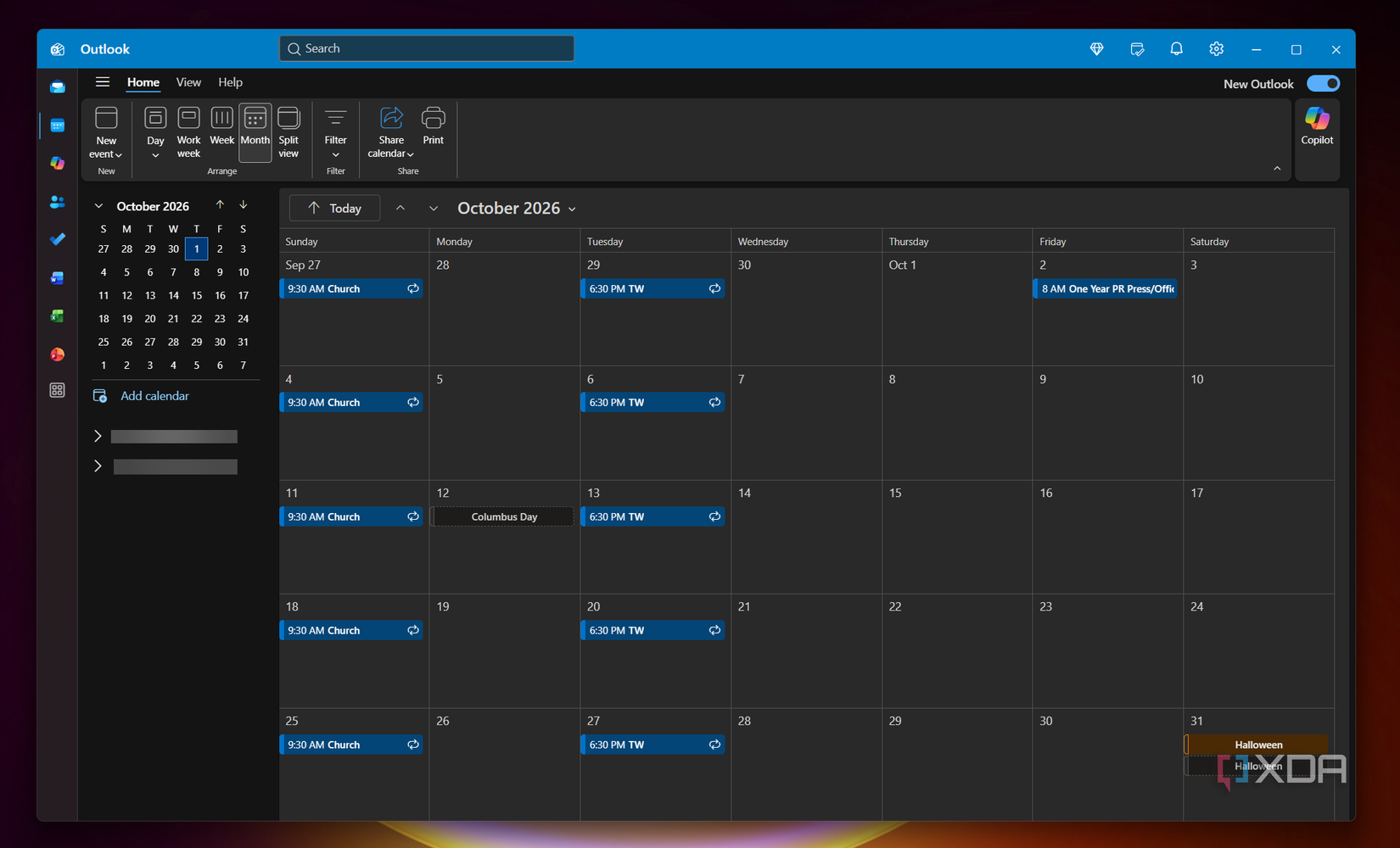
Outlook for email isn’t everyone’s first choice — Perplexity can help manage a cluttered inbox, and Proton Mail is a strong option for personal email. Still, Outlook handles email management capably when it’s required, and responding to messages from the Outlook mobile app is convenient. When checking the inbox, it’s also easy to pop reminders for important emails directly into the calendar.
The real strength, however, is Outlook Calendar. For Windows-first users, it’s hard to find a better calendar app on the platform. Opening Outlook, switching to Calendar view, and clicking the taskbar icon each time you need to check or set an appointment is quick and low-friction. Creating appointments or sharing a calendar is straightforward, and you can manage scheduling without ever having to wade through a cluttered inbox.