Windows has had a built-in SSH server for nearly a decade. SSH is a quintessential feature for anyone who uses more than one computer at home, especially if they are into servers. Managing multiple servers built from old thin clients, laptops, WSL virtual machines, and single-board computers is a common setup for home lab enthusiasts — and most of that management happens from a single Windows machine. For a long time, though, the idea of running an SSH server on a Windows PC never seemed necessary.
The most obvious way to connect to any remote Windows machine is via a remote desktop tool, and SSH never felt useful in comparison. However, the GUI remote desktop approach is not necessary at all times. When you are running services and self-hosted tools on a Windows machine, the SSH server becomes genuinely useful. Windows lists OpenSSH as an optional feature, but it’s a powerful tool for controlling Windows PCs directly from the terminal.
OpenSSH Is Part of Windows
But Only the Client Comes Preinstalled
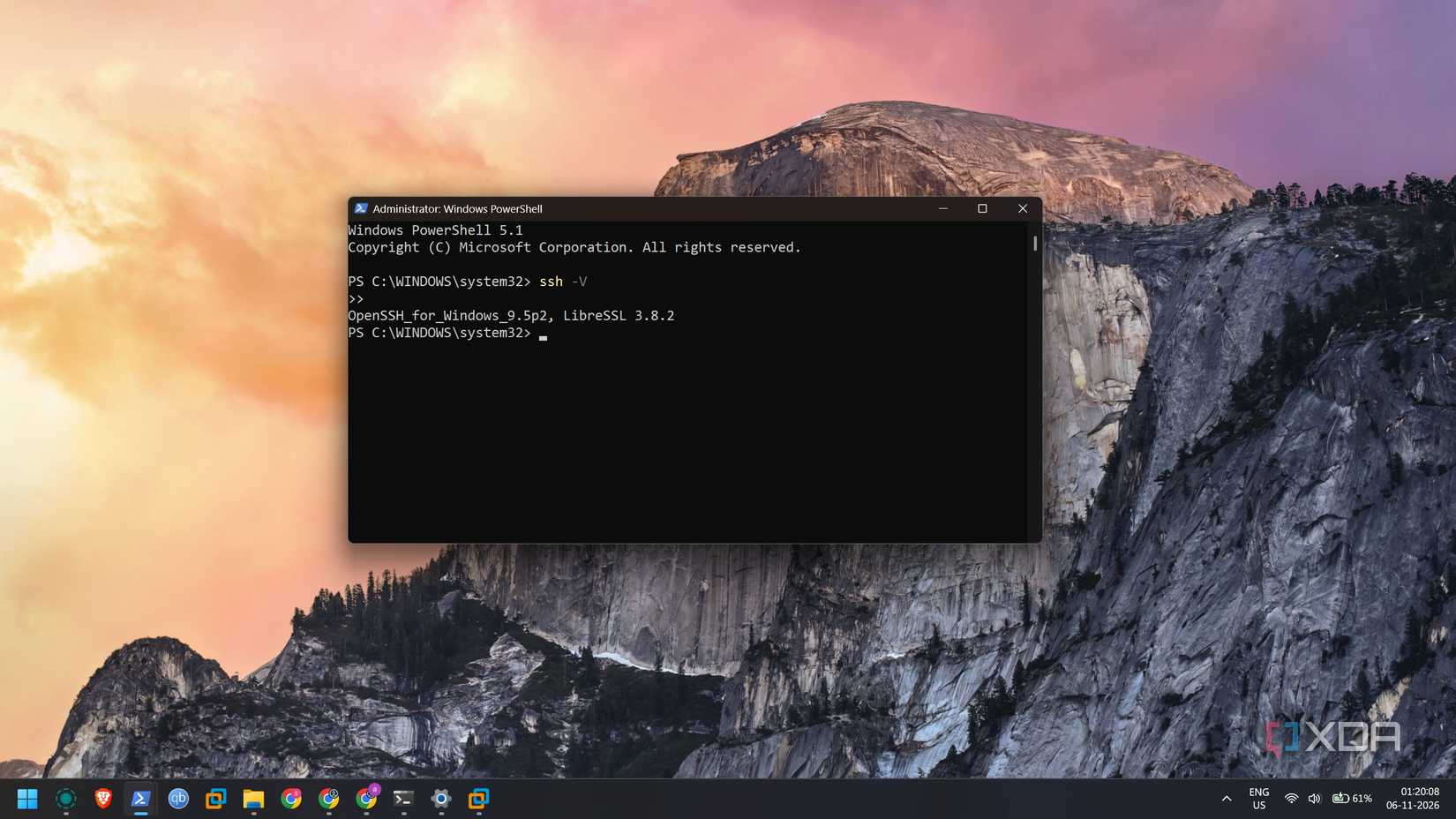
As someone who manages home servers and conducts self-hosting experiments regularly, SSH is absolutely unavoidable. The built-in SSH tool on Windows is easy to overlook — many users don’t realize they’ve been using the OpenSSH client all along on their main Windows PC. OpenSSH is often thought of as a third-party tool bundled with Linux distributions, but Windows integrates it by default.
If you’ve ever used SSH, you know that the client doesn’t matter much. You can connect to any SSH server regardless of which client you use, because the connection protocol remains the same. For example, home servers running DietPi use Dropbear as the default SSH server, yet they can be controlled without issue from the OpenSSH CLI tool on Windows.
Similarly, an OpenSSH server running on a Windows PC can be accessed from a Linux system without any connection challenges. SSH is a protocol, and the client is interchangeable. What many Windows users don’t realize is that an OpenSSH server also exists as an optional Windows feature — separate from the client that ships by default.
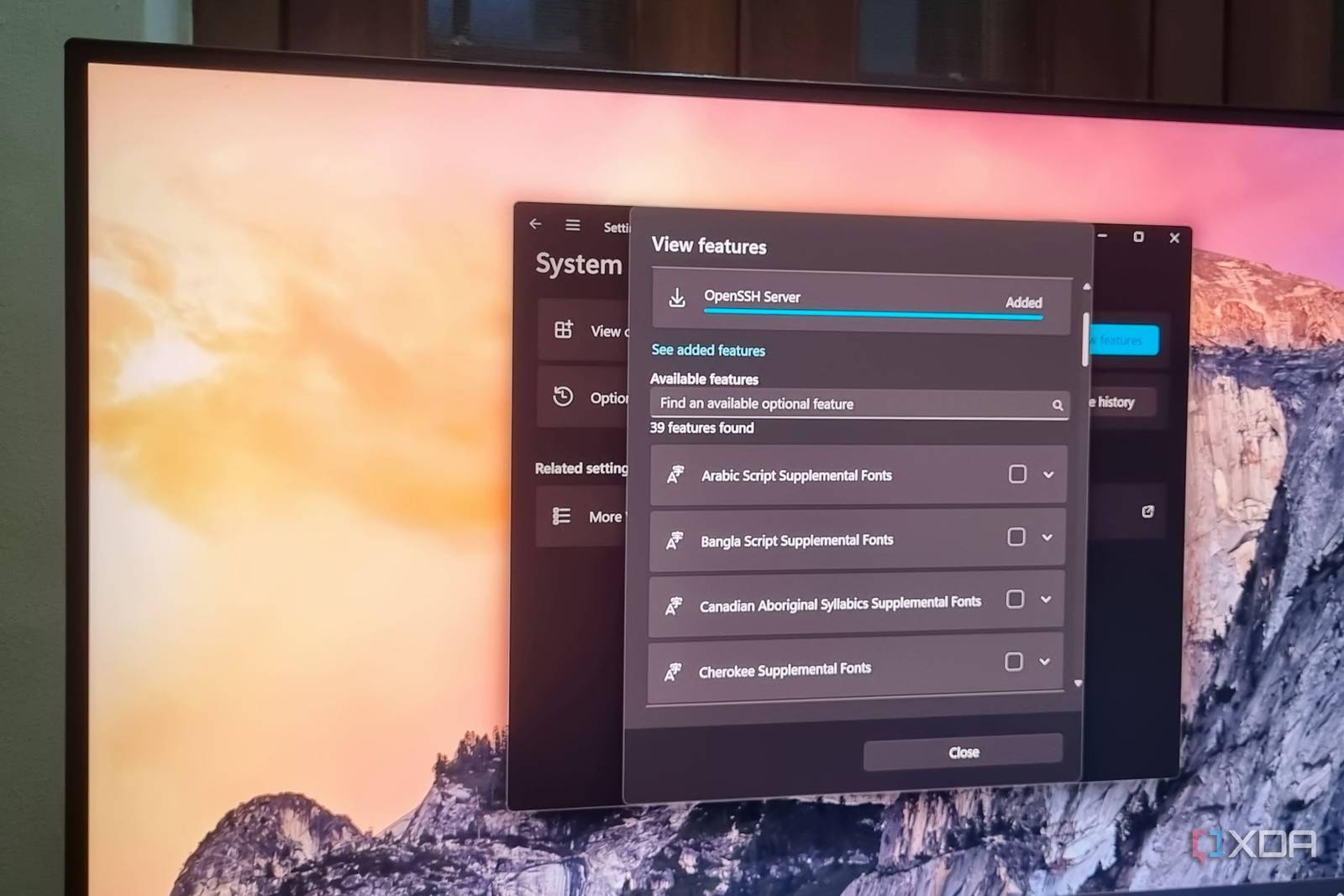
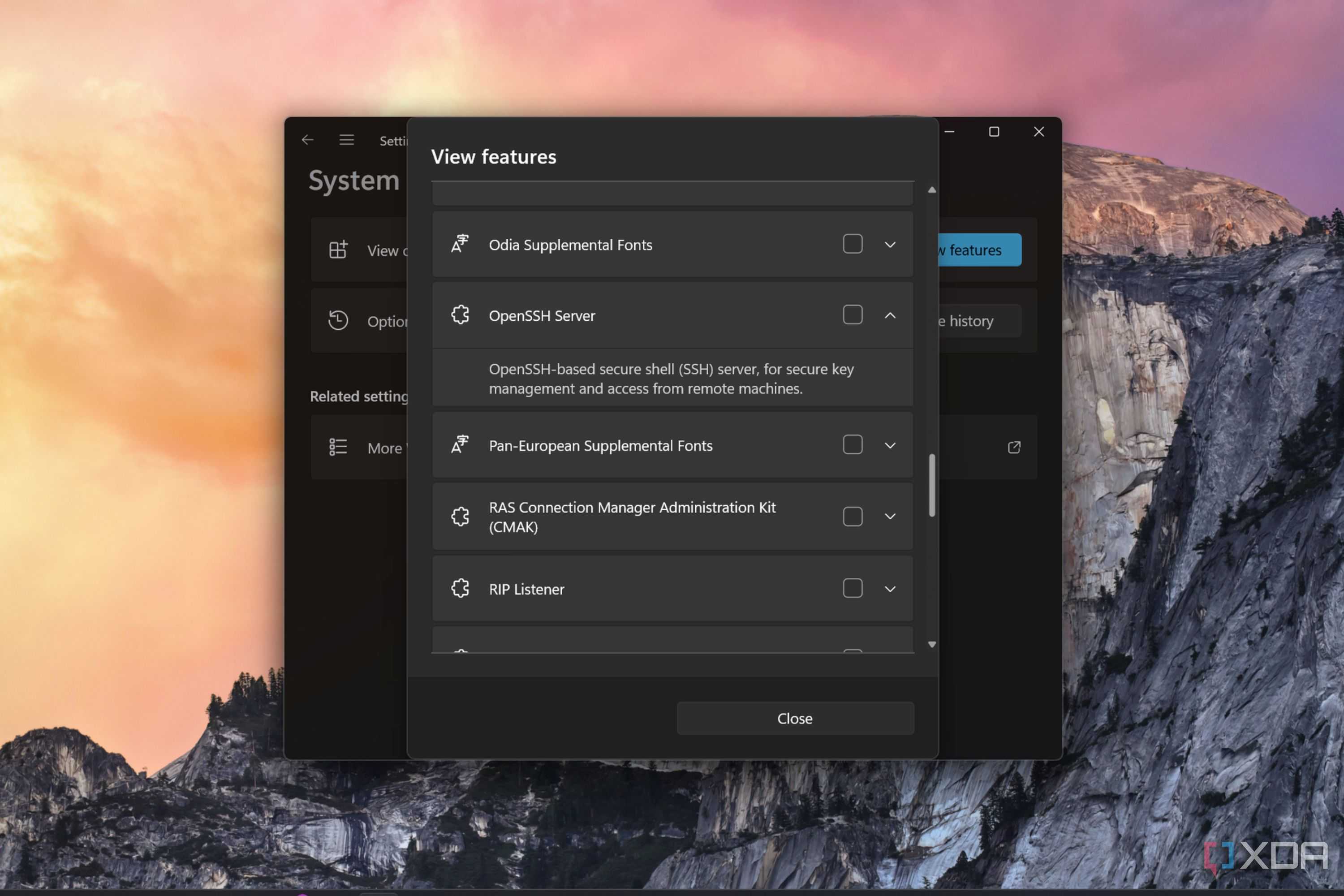
To enable it, open Settings and navigate to Optional features. Find the OpenSSH Server option, select the checkbox, and click Install to add it to your Windows PC.
Remotely Managing Windows Systems
Just Like Any Other SSH Session
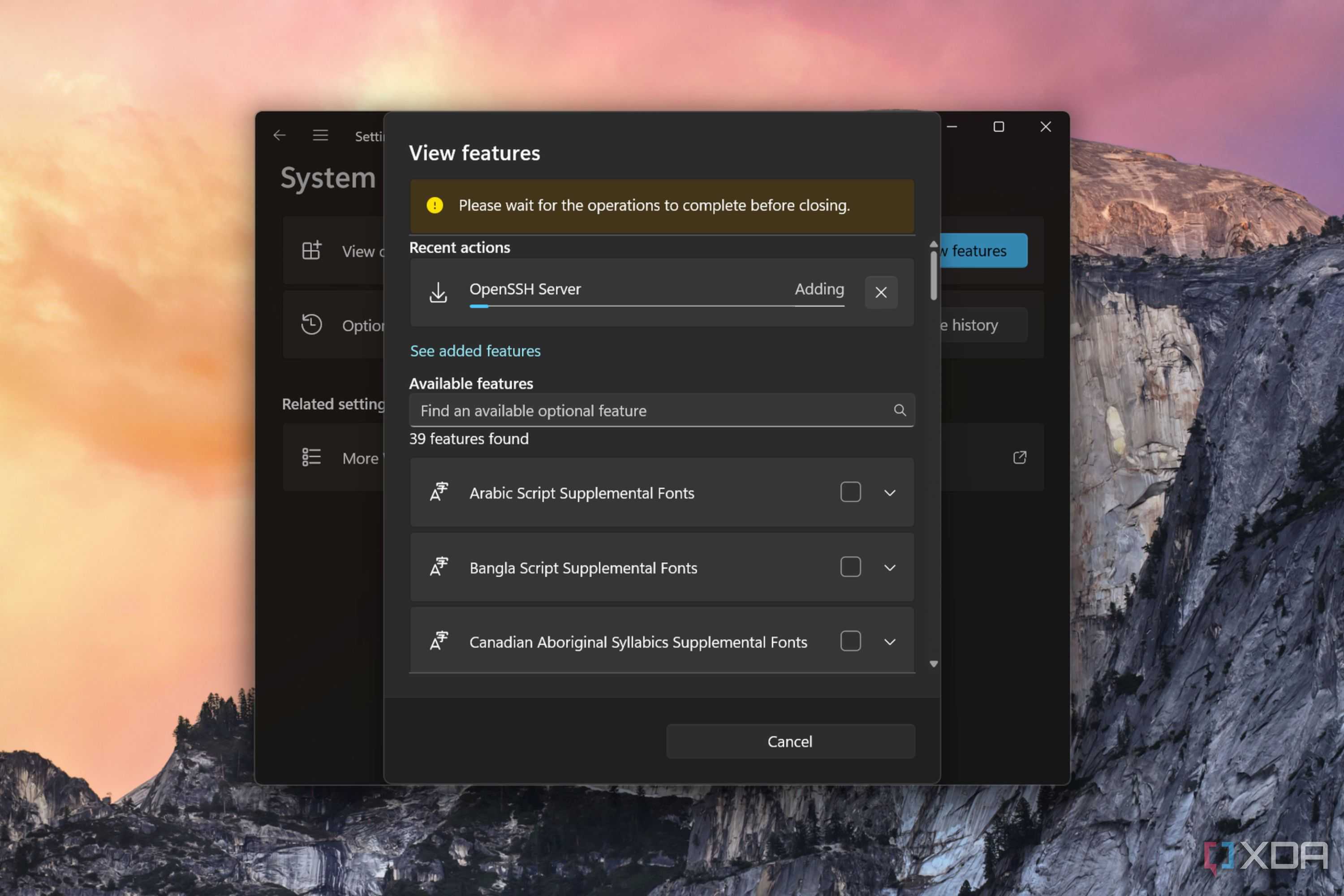
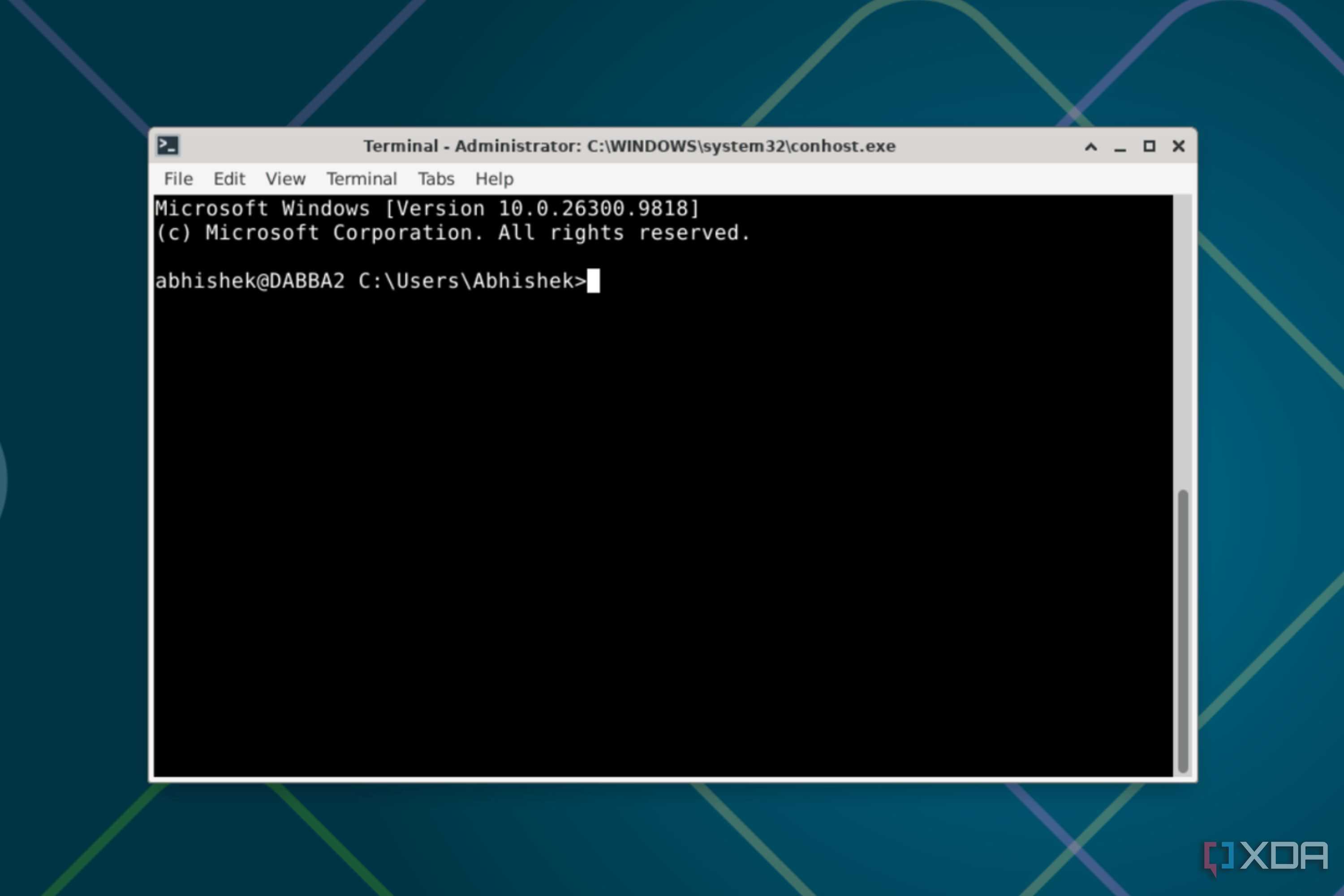
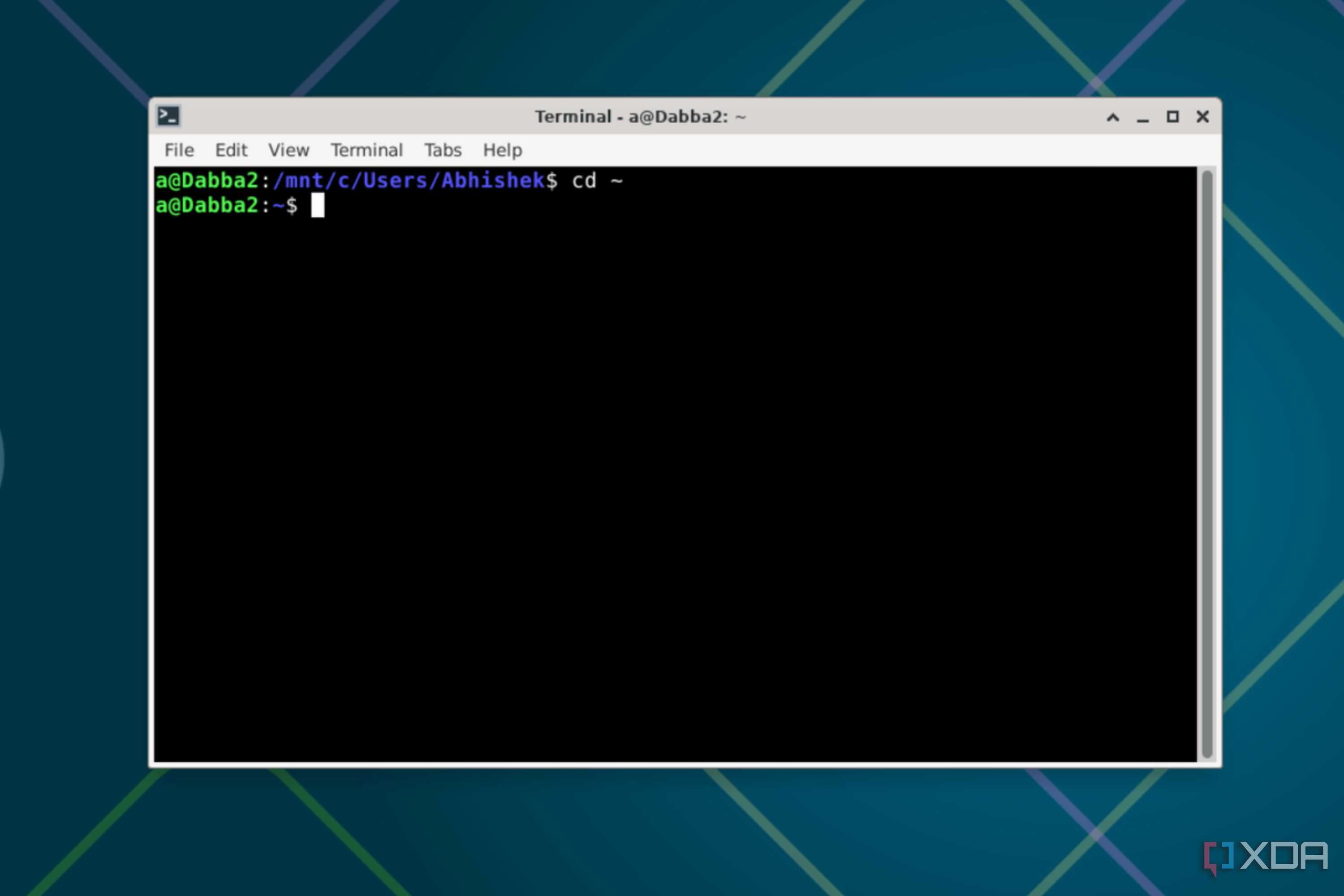
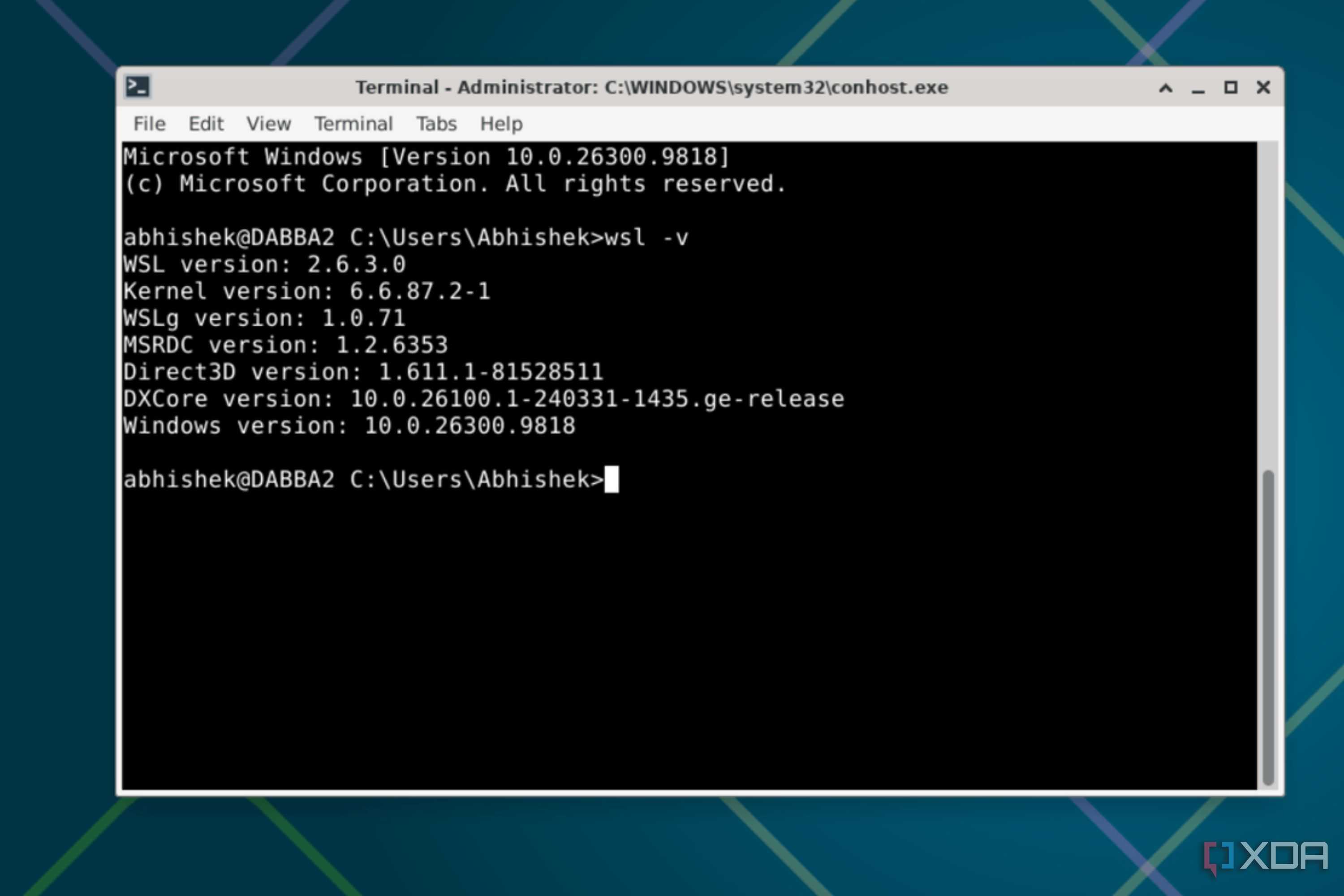
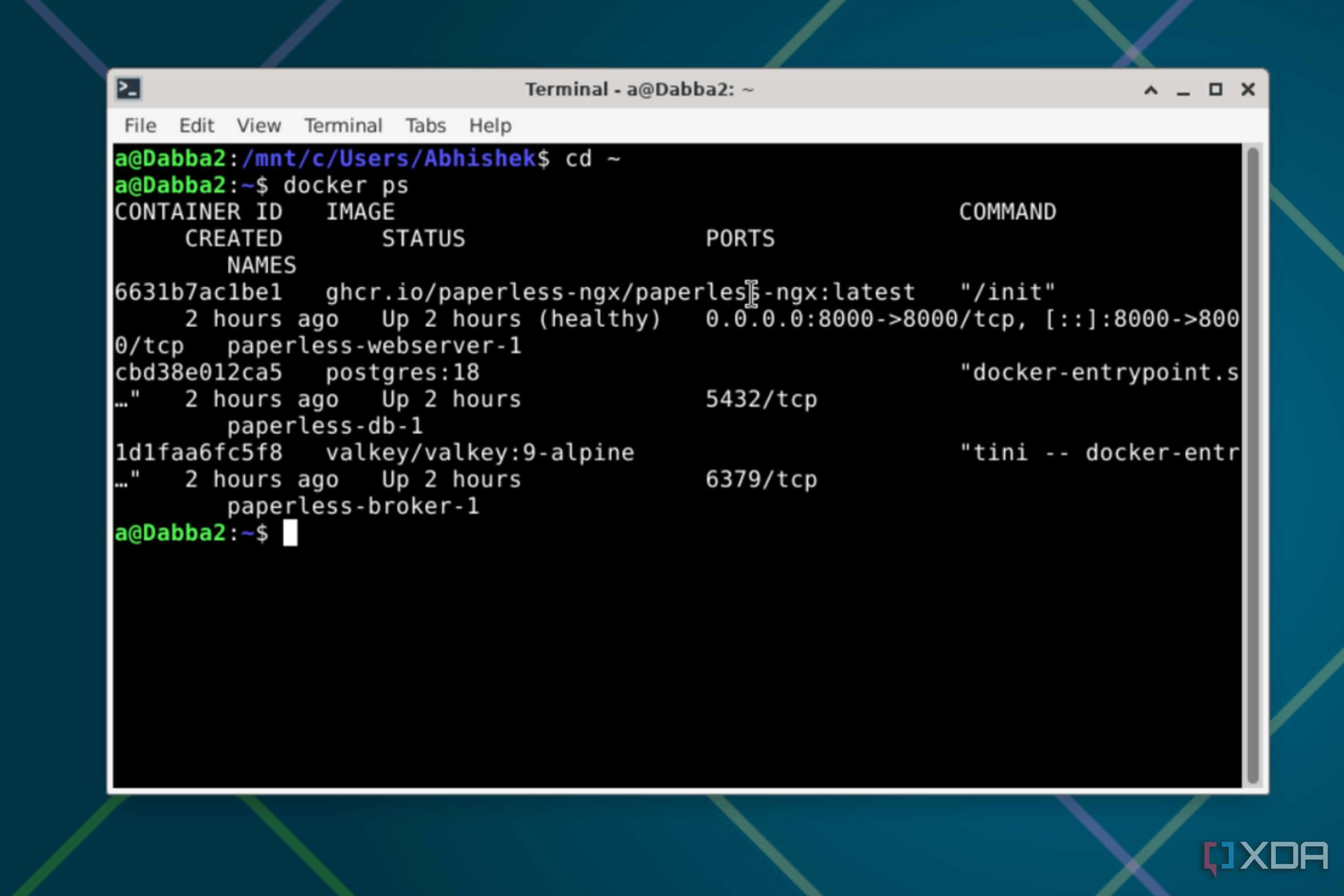
Once the OpenSSH Server is installed and running, connecting to a Windows machine works exactly like any other SSH session. You can log in from a Linux terminal, another Windows machine, or any SSH-capable device on the same network, using the same commands and workflow you’d use with any Linux server. For users who already rely on SSH to manage their home lab, adding a Windows machine to that ecosystem requires no new tools or protocols — just enabling the feature that was already there.