Back in the Windows 7 days, and even during the early years of Windows 10, I had CCleaner installed on my PC. That may surprise you, given the reputation it has today, but at one point it was the most popular cleanup app among Windows users. Back then, installing cleanup apps was completely normal, almost like installing antivirus software on your PC. That’s because Windows had a reputation for gradually slowing down as it accumulated junk over time, so clearing temporary files and caches felt like basic maintenance.
Many long-time Windows users still have that habit, but Windows 11 doesn’t really need that kind of maintenance to keep things running smoothly. In fact, I haven’t once felt the need to install a third-party cleaner ever since I updated from Windows 10 four years ago. From Storage Sense to cleanup recommendations and drive optimization, Windows now gives you several options to make sure you don’t ever have to rely on a third-party tool like CCleaner again.
Cleanup Apps Are Redundant Now
Just head to Storage settings and see for yourself
What’s the point of a dedicated cleanup app when almost everything it claims to do is built right into Windows? If you just go to System > Storage, you’ll immediately see what I mean. Just like your smartphone, Windows 11 already gives you a clear breakdown of what’s taking up space, so you’re not left guessing. For starters, you can click Temporary files and see exactly what you can remove. And if you’re not sure, you can click Cleanup recommendations and review what Windows thinks is worth removing.
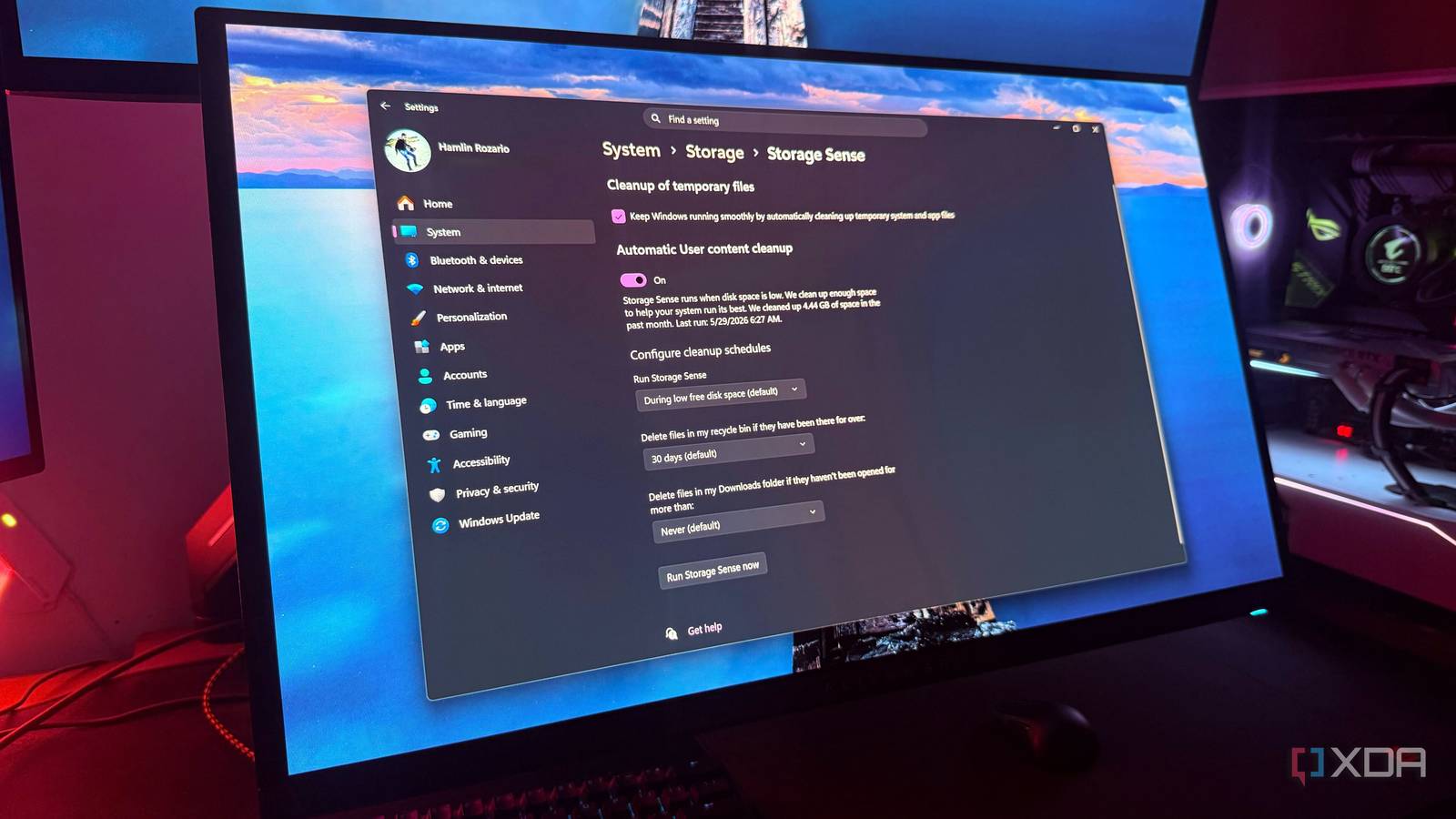
You can even go to Advanced storage settings and choose Drive optimization to defragment your HDD or optimize your SSD with TRIM. This keeps your drives running efficiently without relying on something like CCleaner to do it for you. Then there’s Storage Sense, which can automatically clean up temporary files based on the schedule you set. And you can always review apps you’ve never touched in years from Settings > Apps > Installed apps. Once you go through everything Windows already gives you, you’ll realize there’s really not much left for a cleanup app to do besides annoying you with prompts to clean your PC even when it doesn’t really need it.
Cleanup Apps Focus on the Wrong Things
Registry entries and cache files aren’t what’s filling your drive
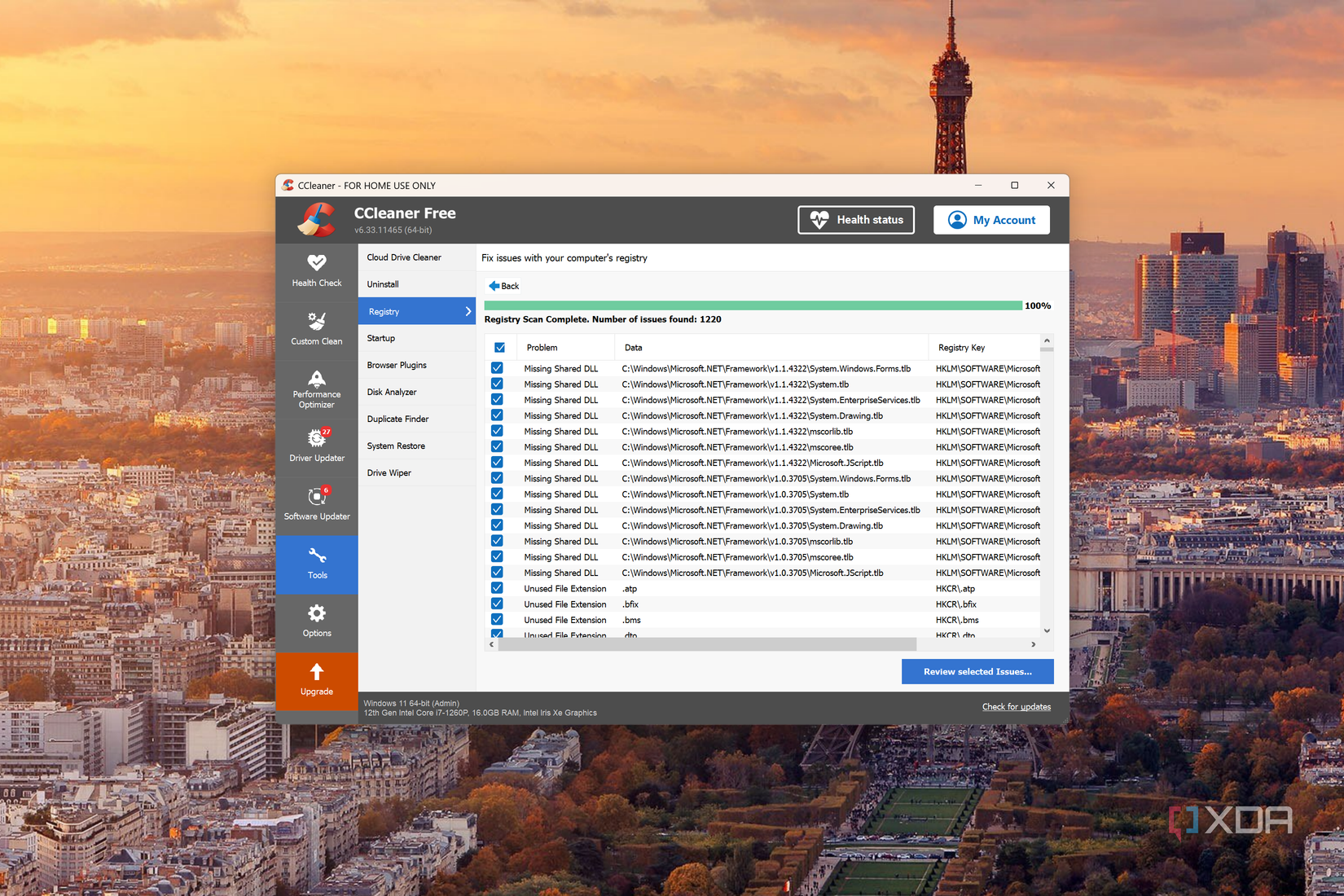
The problem with dedicated cleaners has always been what they choose to focus on. Things like registry entries and browser cache are often used to make your PC seem more cluttered than it really is. In reality, Windows doesn’t need registry cleaning, and even Microsoft advises against using apps that advertise this feature, warning that they may contain spyware or adware. If anything, deleting one wrong entry is more likely to break something than speed up your PC.
It’s a similar story with cache files. Sure, it’s nowhere near as risky as deleting registry entries, but browser cache actually helps websites load faster by storing things like JavaScript files, CSS files, and other site assets locally. Cleanup apps label perfectly normal files as clutter because inflated scan results make it much easier to sell you premium features you probably don’t need. The real storage hogs are usually much more obvious — massive game installs, duplicate media, or years of forgotten downloads.
The Main Reason to Use Dedicated Cleaners Is Control
But the vast majority of users are better off letting Windows automate it
For power users who want granular control over exactly what gets deleted and when, a dedicated cleaner can still make sense. However, for most people, the built-in Windows 11 tools cover everything that genuinely needs doing. Storage Sense handles routine cleanup automatically, the Storage settings page gives you a clear picture of what’s eating your drive space, and Drive optimization keeps your drives healthy without any third-party involvement. Unless you have a specific reason to go further, Windows already has you covered.