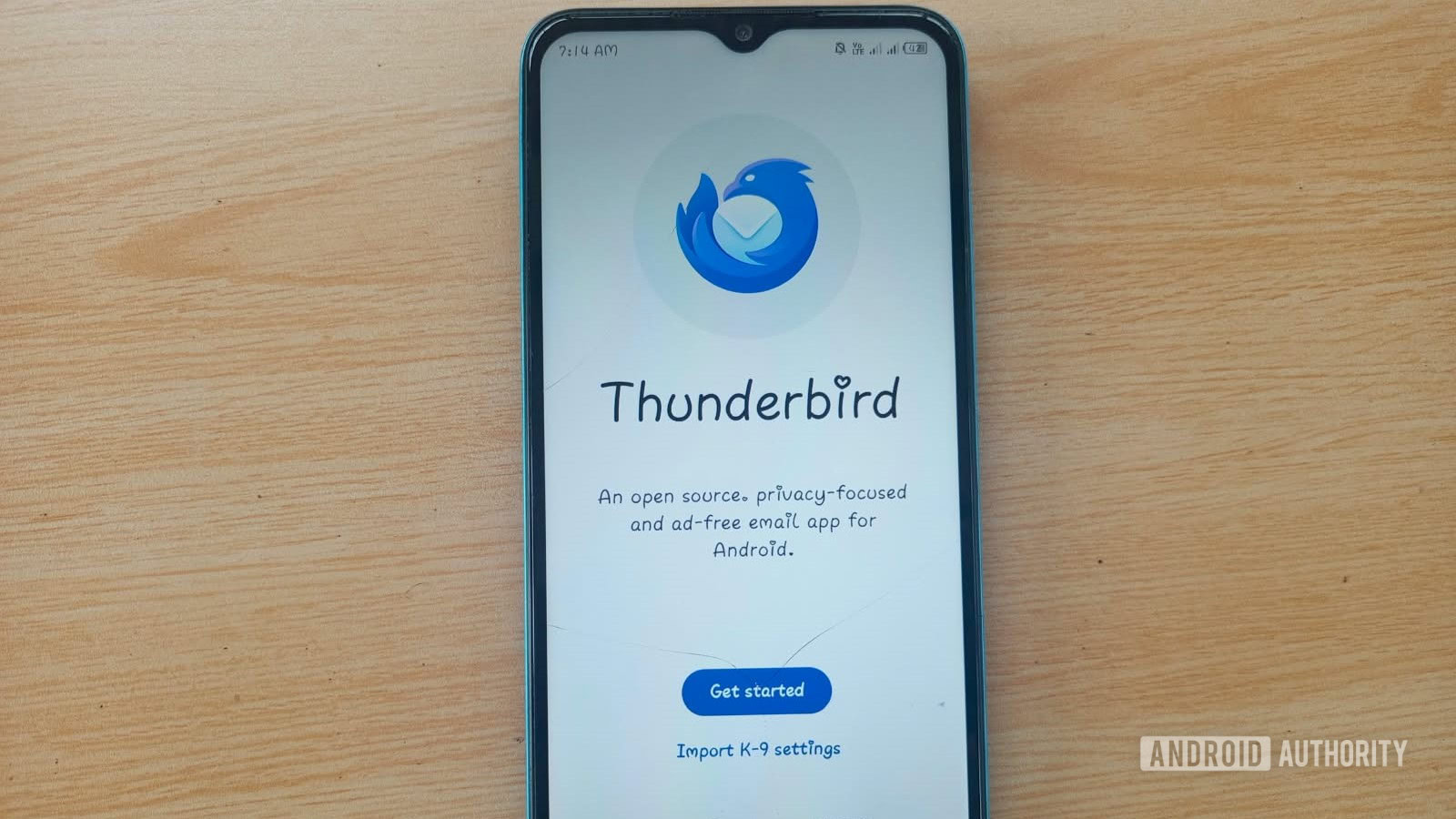
At the beginning of this year, I decided to ditch Gmail for the first time in about 15 years. It was not my plan to let down Google’s email app, as I have always enjoyed features such as Proofread, Confidential Mode, and Undo Send — the last of which saved me once when I almost sent an email meant for my wife to my boss. But that does not mean it’s the best option for everyone.
Over time, the Gmail app stopped feeling like a tool for sending and receiving emails and became like a marketer trying to sell me Google’s services. From the push for smart features that I don’t need, to ads and the cluttered, AI-supported interface, checking my emails became a chore.
So, despite my skepticism for the alternatives, I finally reached my breaking point in February this year and decided to move to Thunderbird on Windows and Android. I have used it for about seven months now, and Gmail no longer feels like the obvious winner. My only regret is not jumping ship sooner. Here are the main reasons why I may never go back to Gmail.
I Can Access My Emails Offline
Have you ever been on a flight, vigorously searching for a work email you received two weeks ago, only to find out you cannot access it because there’s no internet connection? That’s the situation I found myself in back in December 2025 while traveling to Canada. Professionals across various sectors using Gmail as a standalone email app often face the same infuriating reality. The platform prioritizes cloud connectivity over offline functionality, leaving users stranded when there’s no internet access.
Thunderbird, on the other hand, is an email client with local storage, meaning I can store emails on my device, read them offline, and keep my workflow flexible. Whether it is working during long flights, traveling to regions with spotty coverage, or dealing with network outages, I do not have to rely on a constant browser session. While Gmail can also let you access your emails without an internet connection, its features are significantly limited.
To enable this setting in Thunderbird on your PC, click Account settings at the top-right corner of your screen. From here, select Synchronization and storage, then check the Keep messages for this account on this computer setting. Once complete, Thunderbird will download all the messages for the selected folders so you can access them offline seamlessly.
You can also download and save all your messages by changing the message retention settings. Navigate to Settings, click Account settings, and select Synchronization and storage. Under Message Synchronizing, choose Advanced and check all the folders you want to access offline. From the same tab under Disk space, select Synchronize all messages locally regardless of age. Disable Don’t download messages larger than and hit OK.
After that, you will get true offline access. You can access your messages or email history from last month or last year without internet connectivity. Just note that large email attachments may take up a lot of space on your device.
Lots of Customization Options
Another notable feature of Thunderbird is support for third-party add-ons that you can install to make it more productive on your PC. Whether it’s add-ons for sending messages with end-to-end encryption, uploading large email attachments to the cloud, or creating various templates, you will find them in Thunderbird. To access the add-ons on your PC, navigate to Settings, then scroll down to Add-ons and themes. From here, you can browse or search for the add-on you are looking for and then tap Add to Thunderbird.
The Android Thunderbird app also gives you absolute control over how the inbox appears. You can adjust the themes, color codes for certain emails, or even fonts. Tap Settings, then General settings, and tap Display. From here, you can adjust the display density: pick Relaxed (to see more emails quickly) or Compact (to reduce the number of emails you can see at a glance). You can also increase the number of message preview lines to six, allowing you to quickly check an email and decide whether it is worth reading. The split view feature, also found under the Display settings, feels like a desktop email client on a foldable or a larger phone.
Thunderbird Is Open Source
Thunderbird is open source, making it more appealing to privacy-conscious users like me who handle sensitive emails. The code is available for inspection, and anyone can analyze how it works, suggest improvements, or study what it does with your data. There are no hidden data mining scripts or trackers in the background.
With Thunderbird, I can sit comfortably knowing I am not trading my data or attention for a free application. In addition, Thunderbird also has an OpenPGP feature that allows me to send or receive encrypted emails without going through third-party plugins. To access the feature in the Android app, navigate to Settings, tap General Settings, then tap the email account you want to encrypt. Next, scroll down to End-to-end encryption and toggle on Enable OpenPGP support.
From that point on, only the person you send your emails to can read them.
No AI in Every Part of My Experience
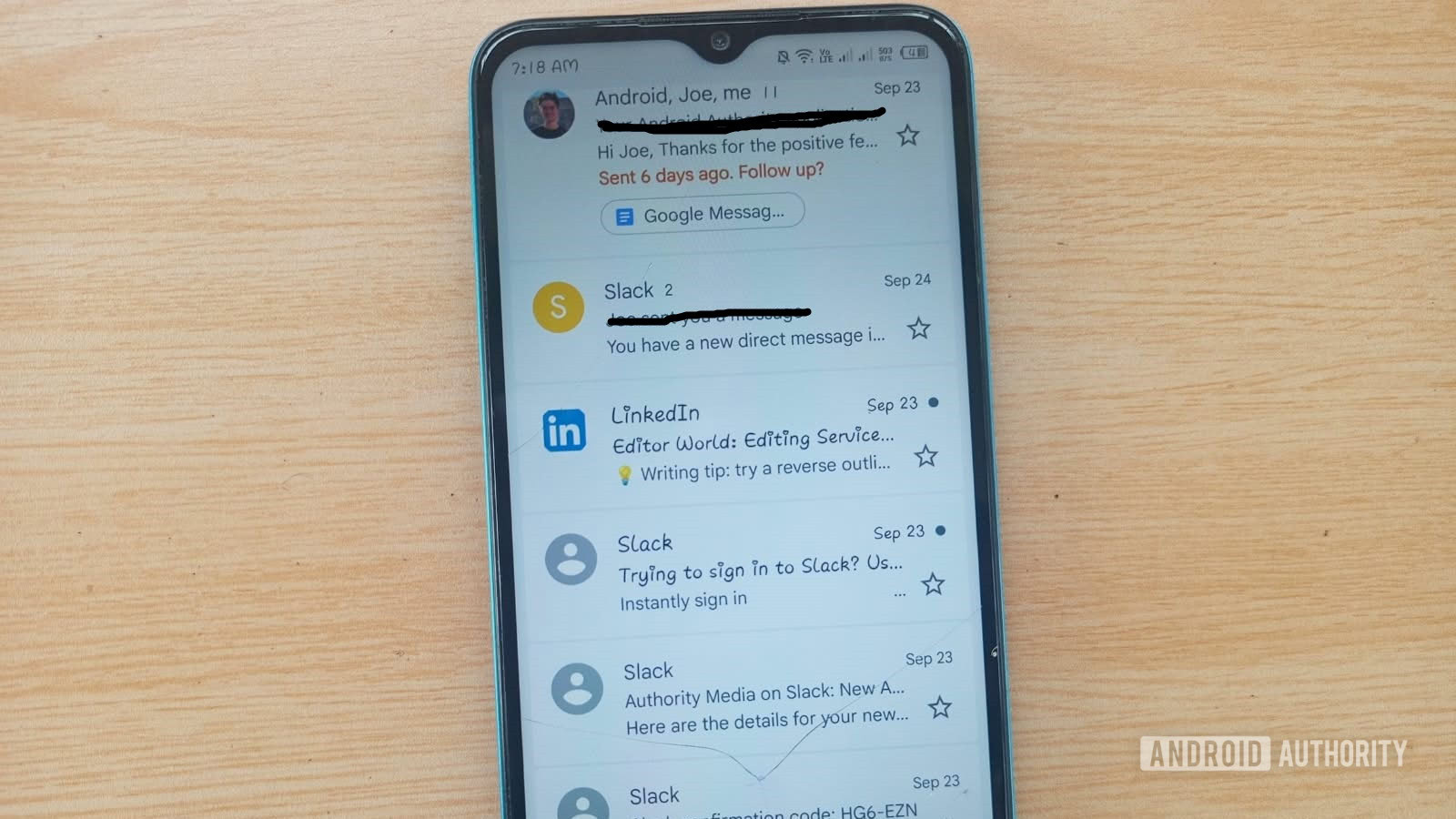
When Google introduced its first generative AI feature in Gmail — “Help me write” — in 2023, the app began to feel like a personal assistant rather than a basic email client. Gradually, Google went on to add more AI features to the app, such as email nudges and suggested replies, that sometimes predict what is not even on my mind.
While you can also add AI features to Thunderbird via add-ons like Thunder AI, embracing Thunderbird in its basic form has shown me a better way to manage emails. There are no forced AI tools trying to suggest my next reply. I prefer to read and reply to my messages rather than rely on a machine to comprehend them and generate canned responses.
Free Distribution With No Targeted Ads
Thunderbird is free to download and use, and unlike Gmail, it does not serve targeted ads inside your inbox. Because it is not built around an advertising business model, there is no financial incentive to track your reading habits or mine your email content. For users who want a straightforward email experience without feeling like the product, that distinction matters more than it might seem.
After seven months away from Gmail, I can say the switch to Thunderbird has been worth it. The offline access, customization options, open-source transparency, and ad-free environment add up to an email experience that feels genuinely user-first — and that alone is enough to keep me from going back.