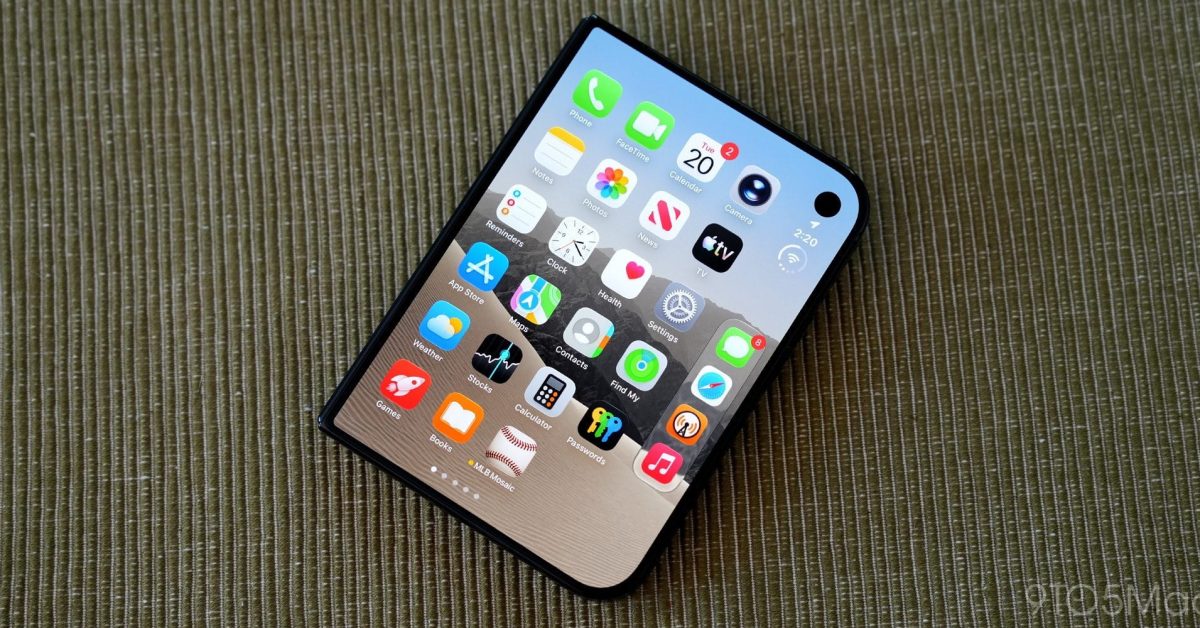
iPhone Duo has a lot of software features that are widely praised, but one area commonly seen as an issue is Safari web browsing. Here are two tips for improving the Safari experience on your iPhone Duo.
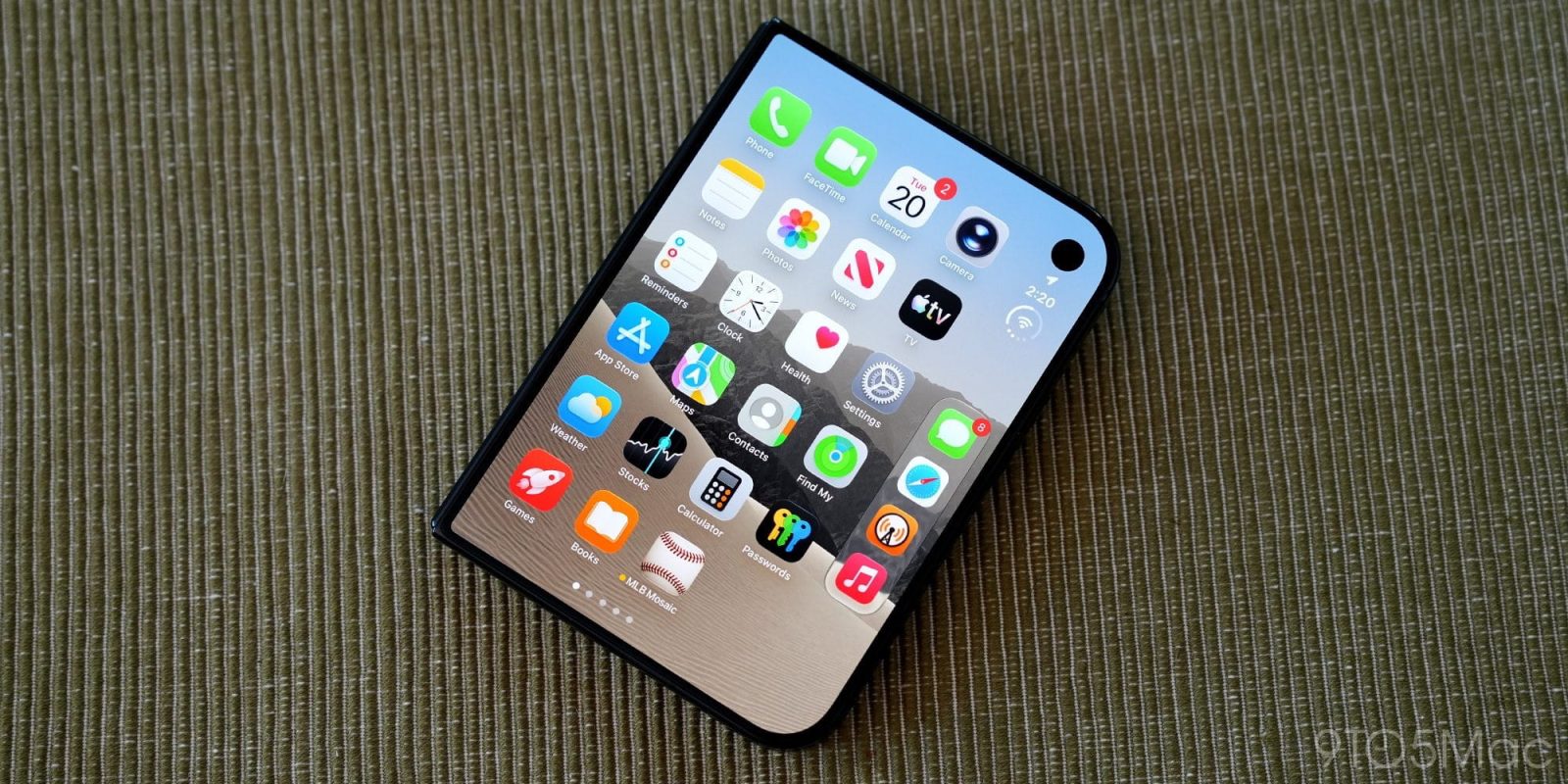
#1: Adjust Text Size and Default Website Zoom
If you want to make the most of your iPhone Duo screen size when browsing, Dylan McDonald recently shared a couple of tips he’s found helpful: set text size to 90% for a little extra space, and set default website zoom to 85% to enable wide layouts on most sites.
In a follow-up post, he notes that the 85% default website zoom makes sites look more natural in size. The chief benefit is enabling a wide, desktop-class layout in many cases on the folding display.
You can change these settings via the following:
- System Text Size: Settings → Appearance → Text Size → move slider to left
- Default Website Zoom: Settings → Apps → Safari → Page Zoom → 85%
#2: ‘Wider’ Extension for Safari
The outer display Safari layout has been an especially big issue for some iPhone Duo users. The right-aligned controls take up a lot of space, making websites feel cramped, and Apple has even publicly acknowledged it is investigating ways to improve the outer display Safari experience.
Indie developer Jordi Bruin created his own solution: a Safari extension called Wider. It launched as a free download but is now a one-time $2.99 purchase.
As the replies to Bruin’s announcement post show, the extension is still a work-in-progress due to some unique edge cases with certain sites. If you’re comfortable with that, and don’t mind the privacy permissions required to enable Wider, it could be a solid interim solution until Apple offers a first-party fix.
If you have your own tips and tricks for improving Safari on iPhone Duo, share them in the comments.