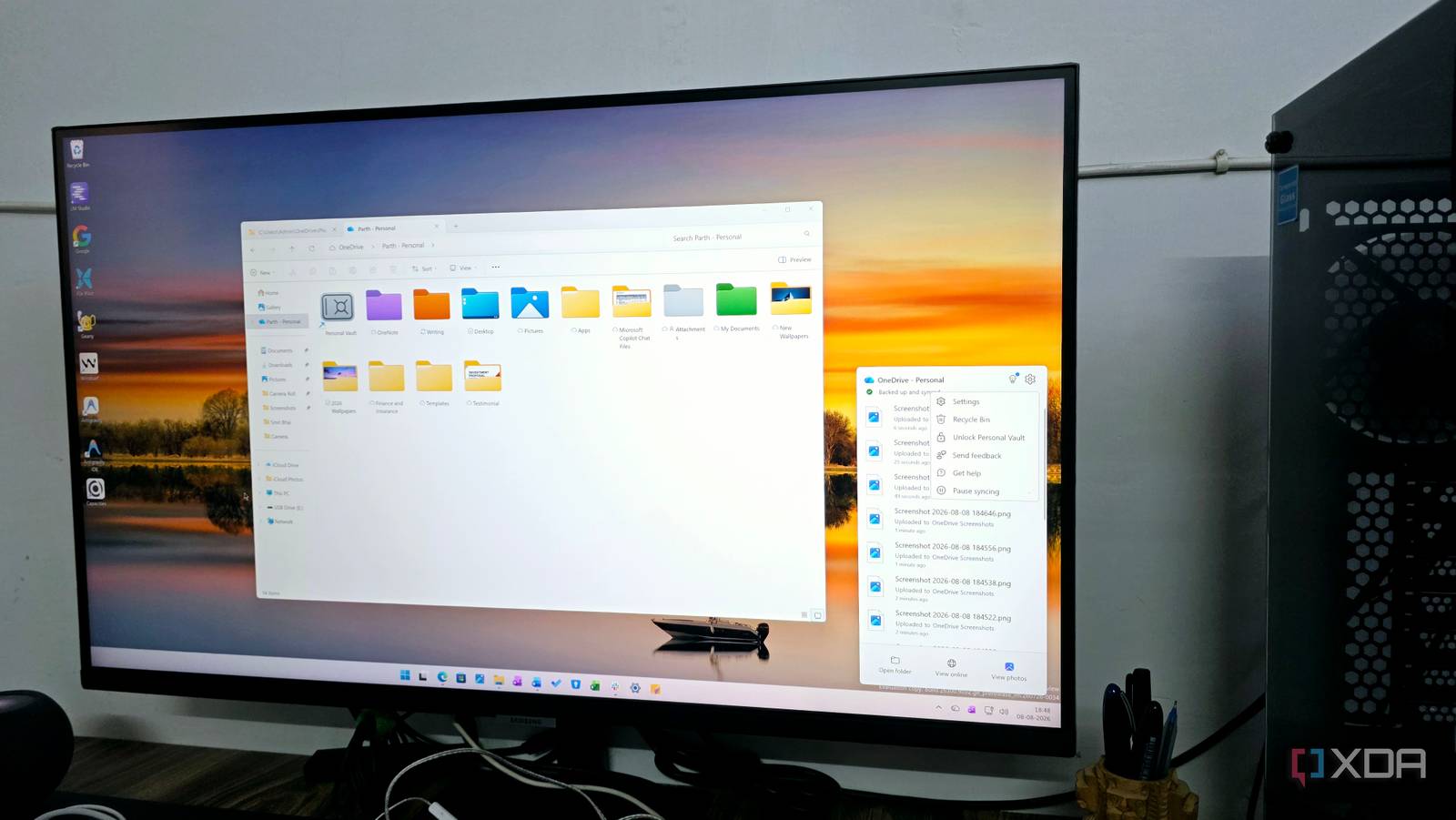
I have bounced between Google Drive, Dropbox, OneDrive, and even Nextcloud over the years, and for the most part, they all did the same basic job well enough. My files stayed synced, I could access them from almost anywhere, and switching services rarely felt like a major upgrade.
That changed when I started paying closer attention to how I stored my most important documents. I wanted something more reassuring than simply dropping sensitive files into another cloud folder, and OneDrive turned out to have exactly that kind of feature I had been overlooking.
Regular Cloud Folders Never Felt Secure Enough
A Little Too Casual for Sensitive Data
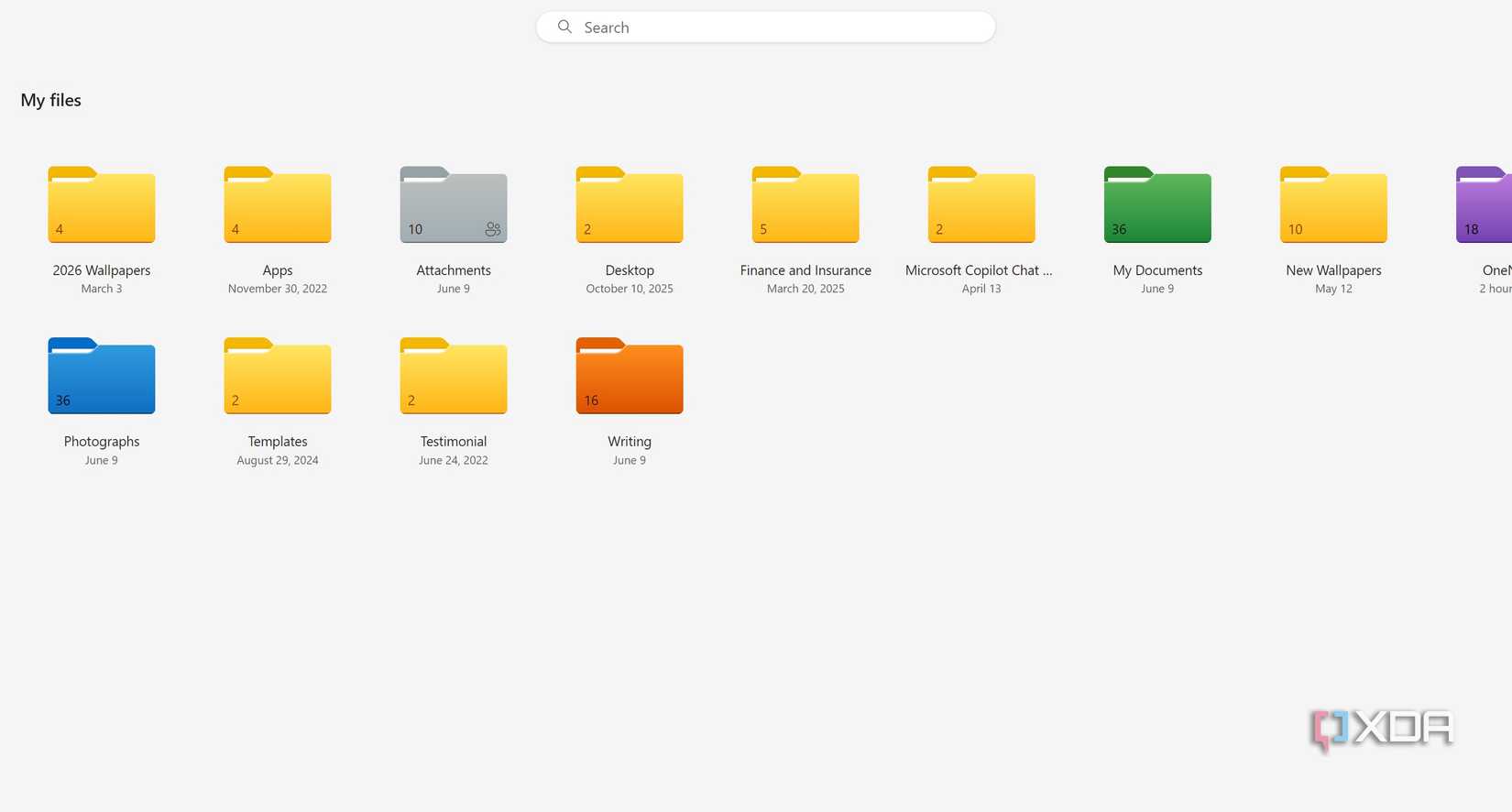
I always treated cloud storage like a giant digital filing cabinet. I would create folders for IDs, insurance documents, tax records, contracts, bank-related PDFs, and other important files, then assume that was good enough.
Technically, those files were protected by my account password and 2FA, but they still sat alongside ordinary screenshots, photos, and work documents. That never felt quite right to me.
The more sensitive the file, the more uncomfortable I became with that setup. If someone ever gained access to my unlocked laptop or an already signed-in cloud account, there was very little separating those documents from everything else.
I could create encrypted ZIP files or password-protect individual documents, but that quickly becomes inconvenient when I need to access them regularly. I wanted an extra layer of protection without turning a simple task into a mini-security exercise every time.
Then I Discovered Personal Vault
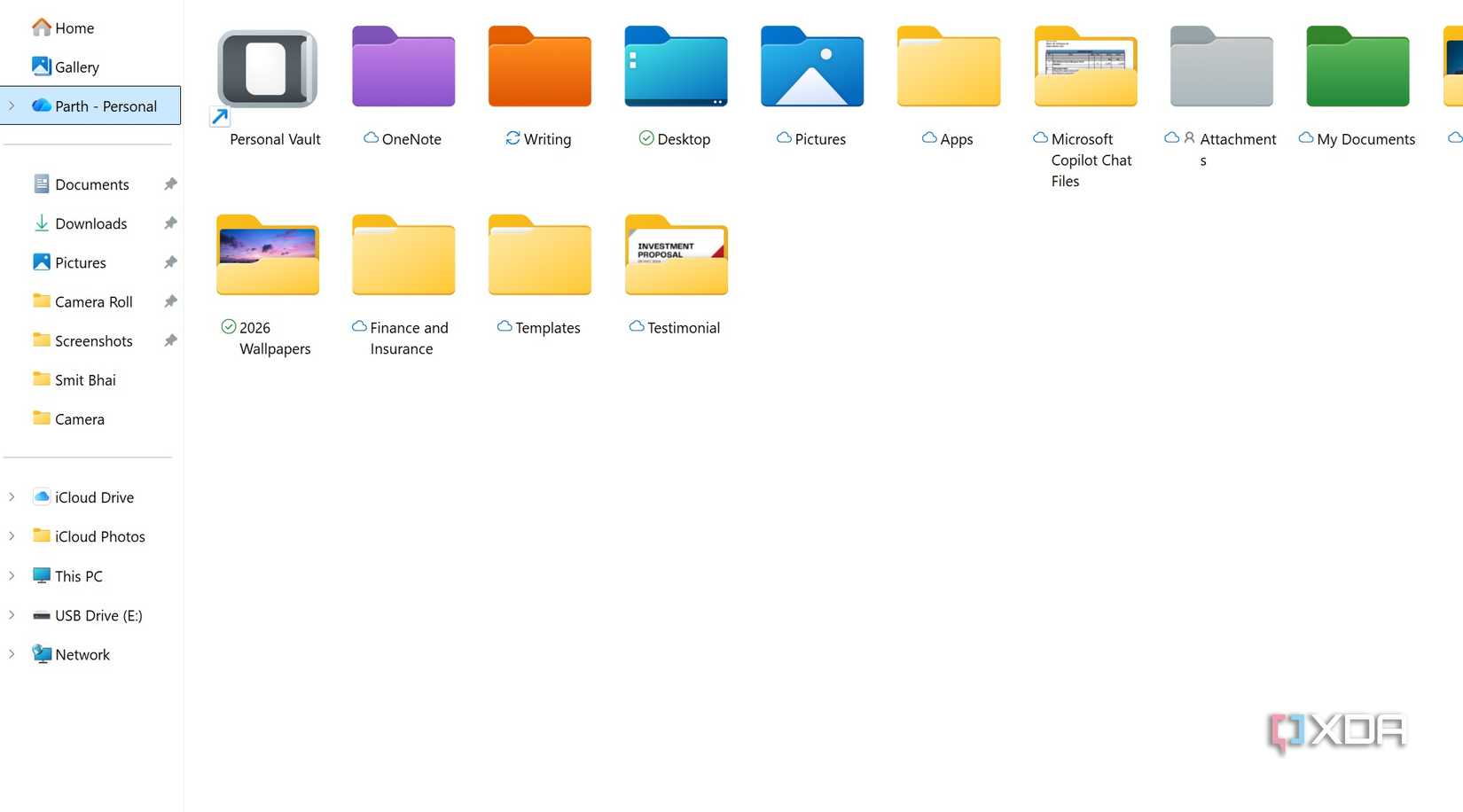
That was when I finally paid attention to Personal Vault, a OneDrive feature I had ignored for far too long. At first glance, it looks like another folder sitting inside my cloud storage. In practice, it behaves very differently.
Personal Vault is a protected area of OneDrive that requires an additional identity check before I can open it. If I put a passport scan or an important financial document in a normal OneDrive folder, anyone who already has access to my unlocked OneDrive session could access it. Personal Vault creates another checkpoint.
Microsoft even prevents files inside it from appearing in regular OneDrive search results, and I can’t accidentally share something directly from the Vault without moving it out first.
This is also where OneDrive began to stand out from the alternatives I had been using. None of the rivals offer such flexibility when handling sensitive files and media in your cloud drive.
Personal Vault does not claim to turn OneDrive into an offline safe, nor does it replace a proper backup strategy. Instead, it gives me several practical layers of protection: account security, encryption, additional authentication, automatic locking, restricted sharing, and a clear separation from my everyday files.
It Works Particularly Well with Windows
And on OneDrive Mobile Apps
On Windows, Personal Vault integrates directly into File Explorer, so accessing it feels native rather than like a workaround. The same experience carries over to the OneDrive mobile apps, where an additional biometric or PIN prompt gates the Vault before any files are visible. For anyone already living in the Microsoft ecosystem, this level of integration makes Personal Vault a genuinely practical security upgrade rather than a feature that exists only on paper.