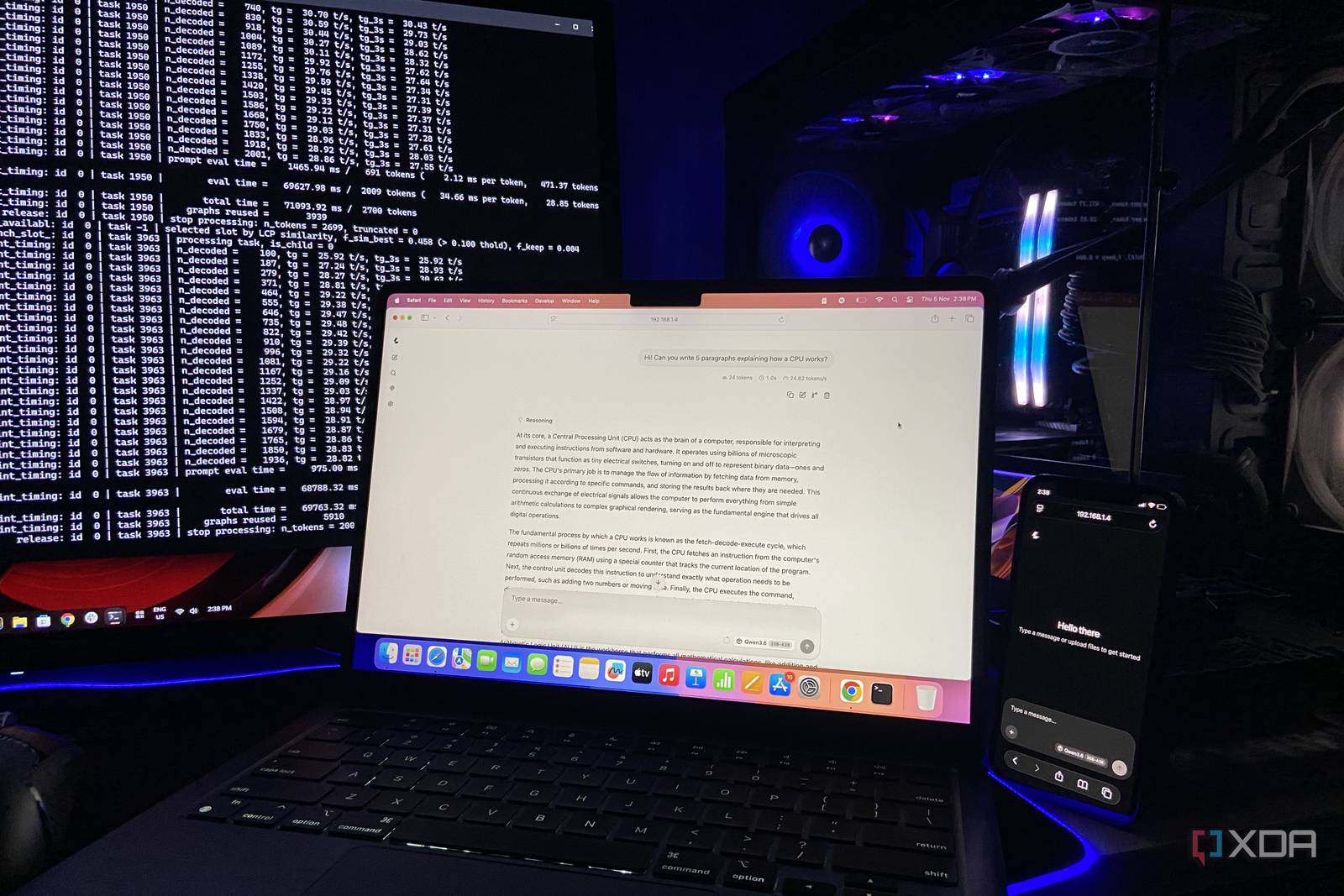
It’ll likely come as no surprise to anyone well-versed in PC hardware that a GPU spends most of its life doing almost nothing. It only springs into action when you launch a game, render a scene in Blender, or fire up a simulator. When your job revolves around juggling documents and Excel spreadsheets like mine, that means most of the time the GPU just sits in its PCIe slot, waiting for the weekend.
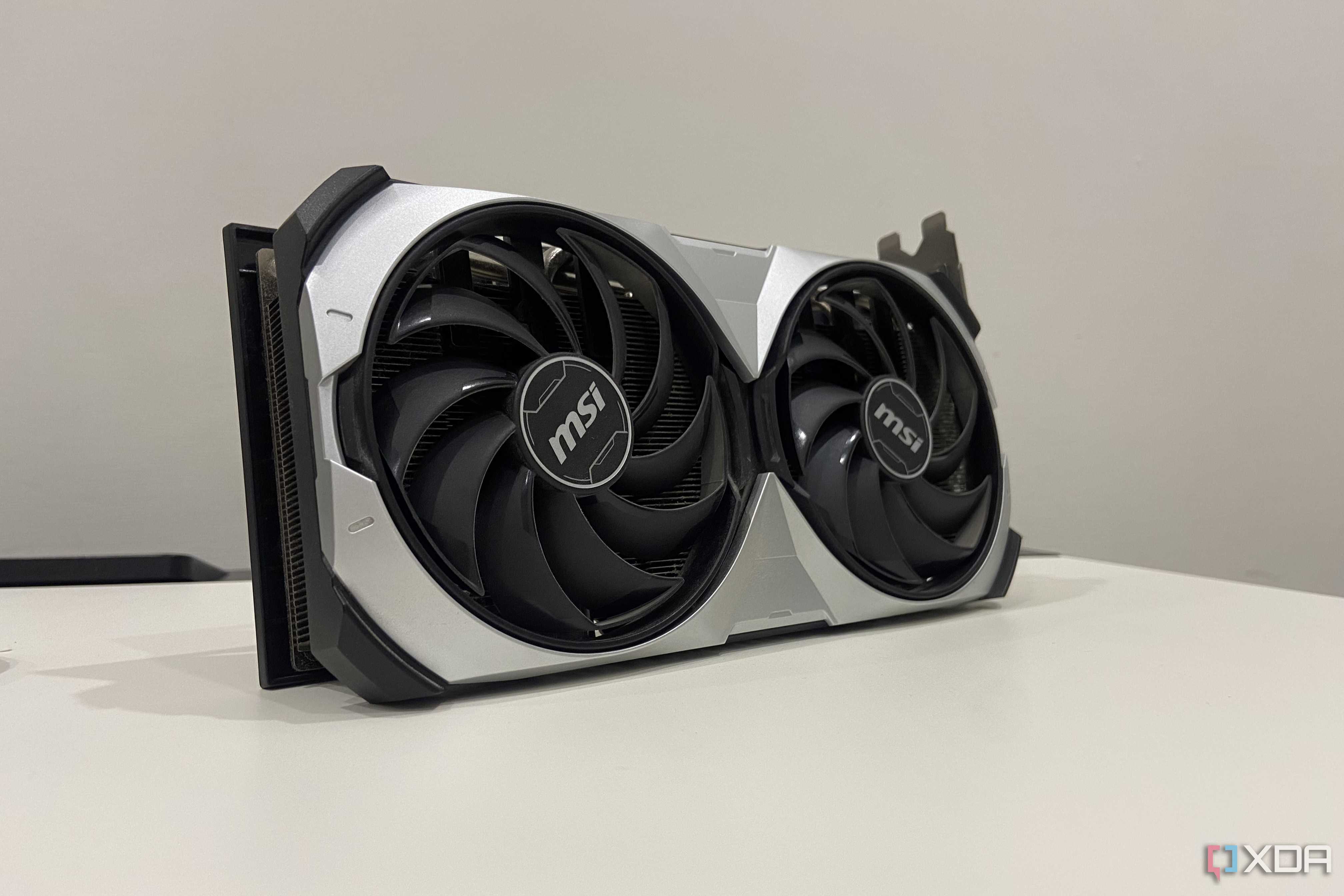
With the hardware that I have in my rig, I already knew that I could turn my RTX 4070 Ti Super-equipped PC into a dedicated AI server for my home and bring Qwen3.6-35B-A3B to every other device that I have under the roof, none of which could hope to run it natively. What I didn’t know, though, was just how easy llama.cpp would make it. Here’s how I’m serving the best model I can run on my 16GB GPU to the whole house, and how little it takes to do so.
The entire setup took one command
Llama.cpp’s built-in web UI turned every device in the house into a client
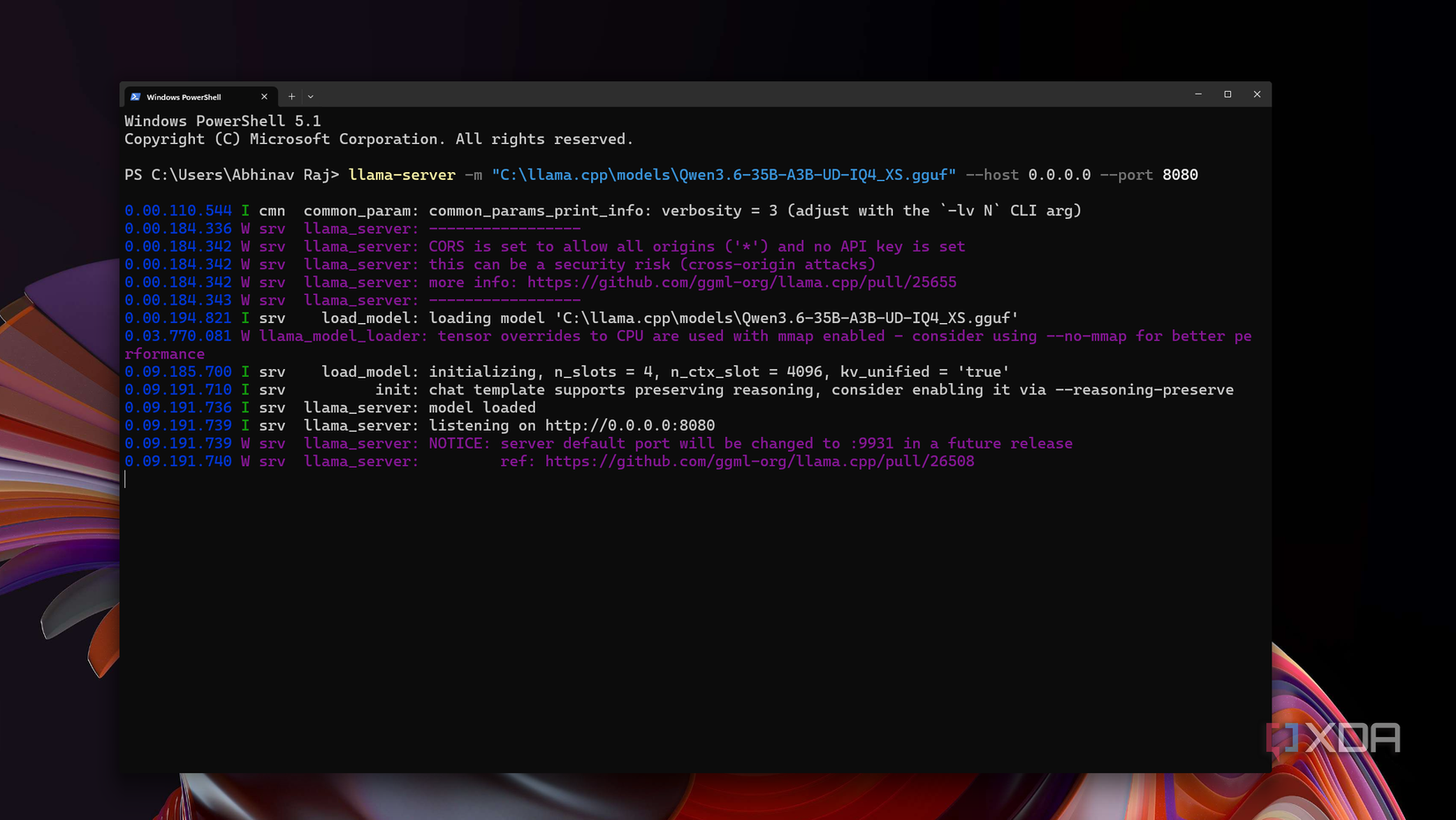
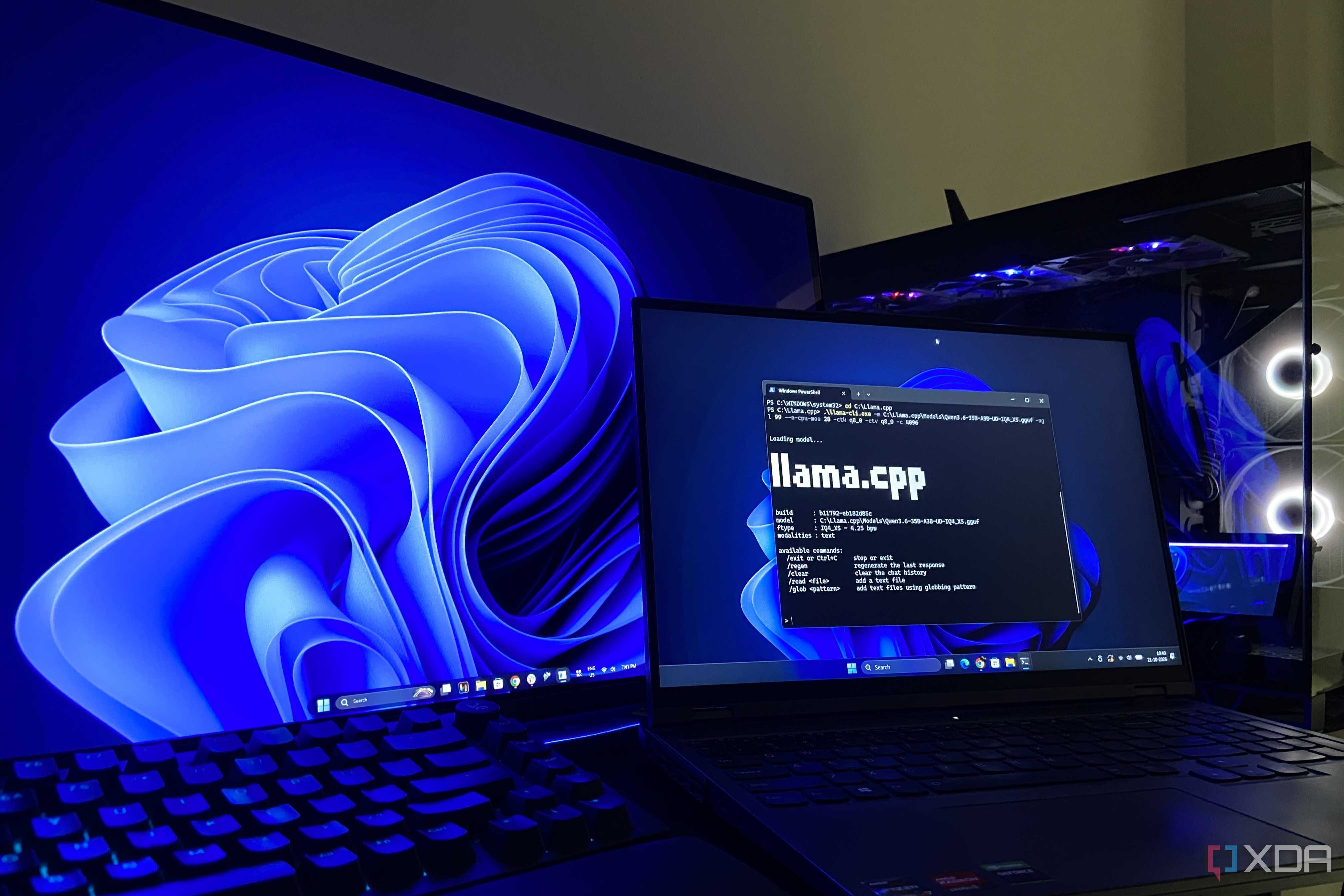
If you’ve been following my work, you’d know that I prefer llama.cpp over any other runtime for local AI inference because of the customizability and performance it offers. I’ve already got a recent build (b11927) set up, along with the model file for my model of choice, which is Qwen3.6-35B-A3B (a UD-IQ4_XS quant from Unsloth) which I use for various purposes on my PC.
The two are the only prerequisites for serving local AI from your PC, and if you’ve already got a similar build and a model you’d like to serve, the only thing to do is run one command in PowerShell:
llama-server -m "C:\path\to\your-model.gguf" --host 0.0.0.0 --port 8080Naturally, you’d have to replace the path with the path to your own model, which is wherever you have saved the model’s GGUF file. For example, serving Qwen3.6-35B-A3B would mean running the following:
llama-server -m "C:\llama.cpp\models\Qwen3.6-35B-A3B-UD-IQ4_XS.gguf" --host 0.0.0.0 --port 8080The specific flag here that makes it a server is --host 0.0.0.0, which instructs llama-server to listen on your home network instead of only on your PC as you would normally do. On the other hand, --port 8080 pins the port, since llama.cpp plans to move its default to 9931 in a future release (which is a point it makes every time you load a model). Everything else can stay at llama.cpp’s defaults which, conveniently enough, already split the context into slots, so several users can chat at once and fit the model into your free VRAM on their own.
But how “fast” do the models run on the client?
About as “fast” and as well as they run on the host
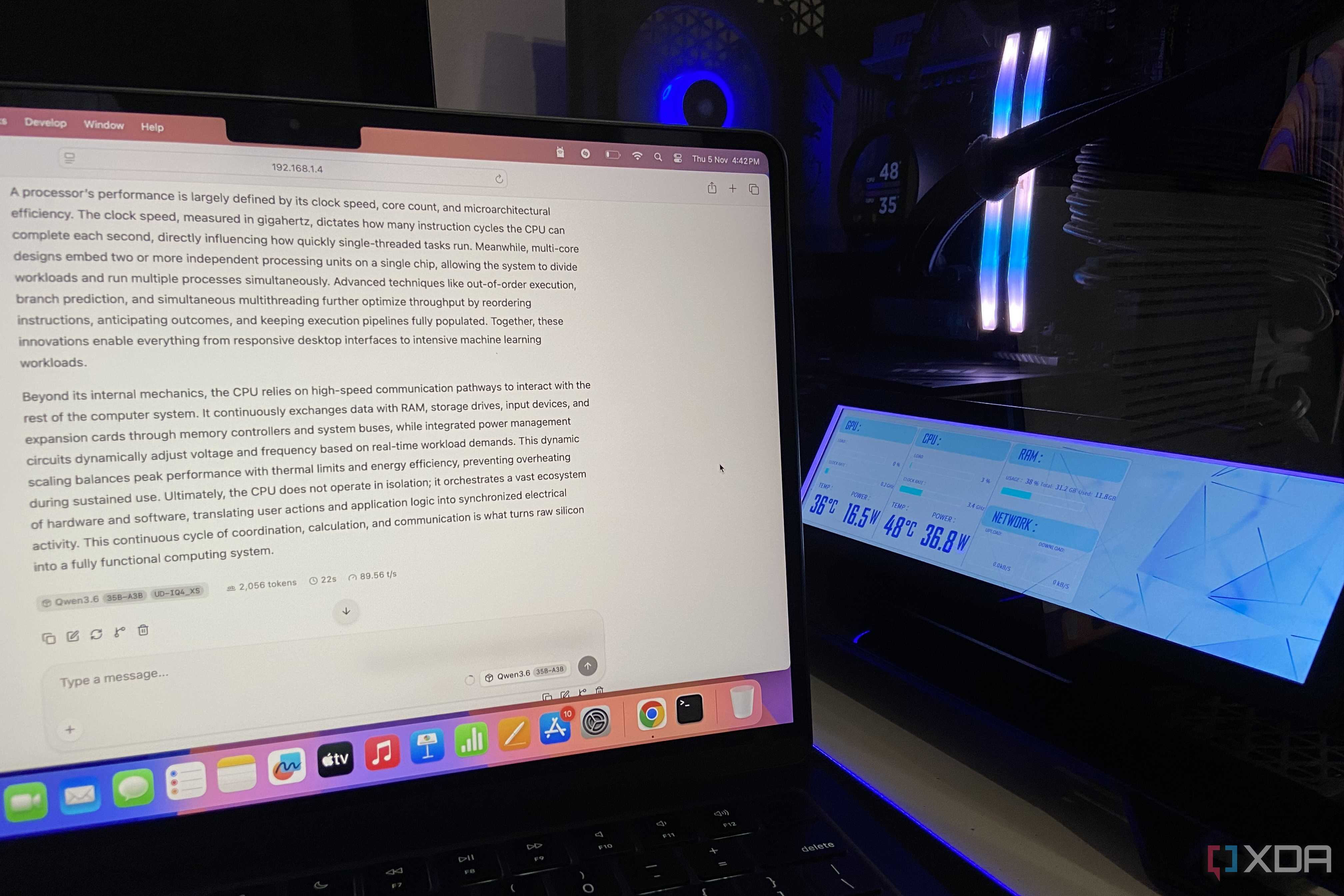
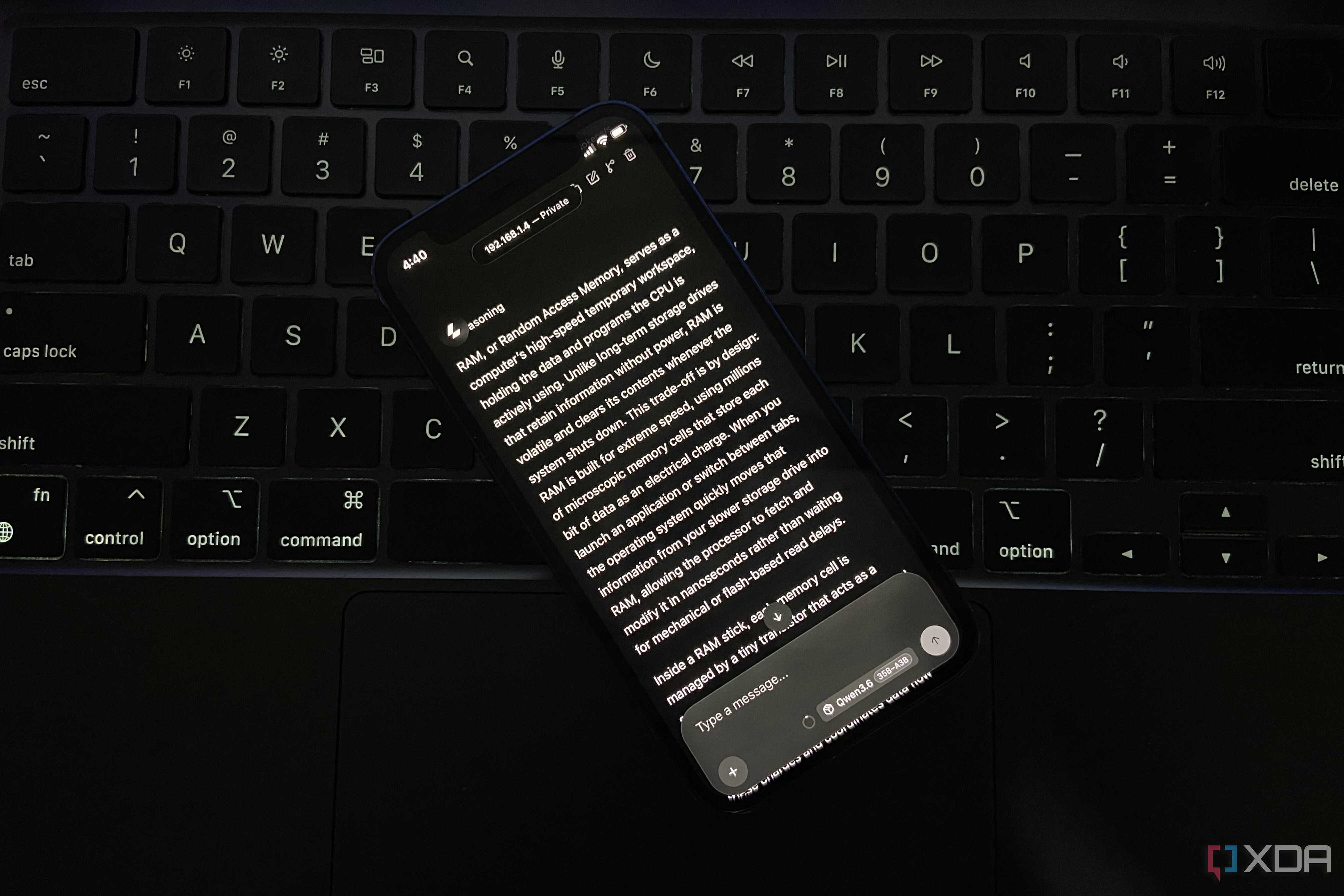
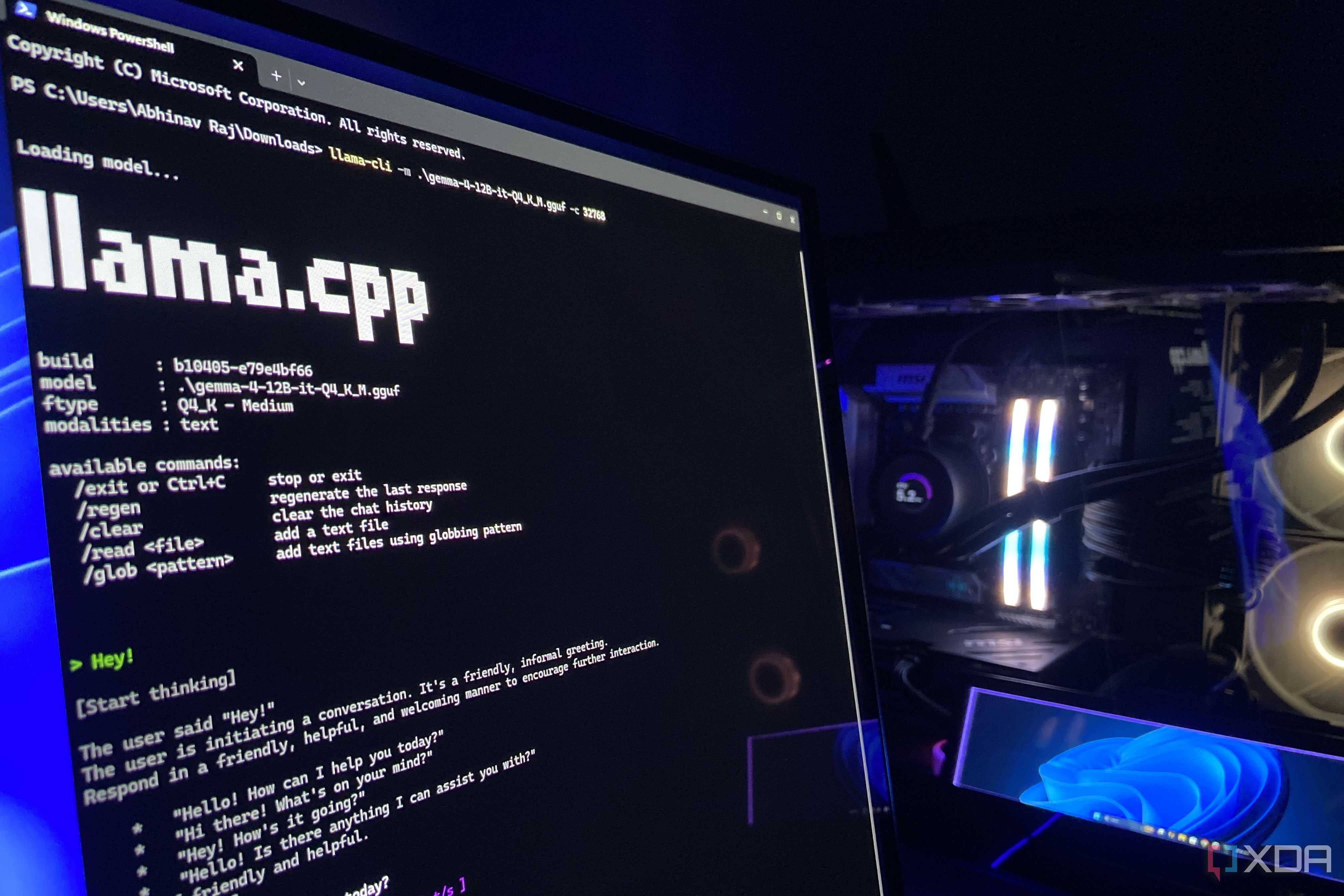
The reason why llama.cpp is perfect for setting up a home AI server is because you barely lose anything in terms of speed or quality when accessing the model from another device on the network. The inference happens entirely on the host GPU — client devices are simply sending requests and receiving responses through the browser-based web UI that llama.cpp spins up automatically. Whether you’re connecting from a Mac, a phone, or a low-powered laptop that couldn’t run a large model on its own, the experience is essentially identical to using the model directly on the host machine.